
The best advanced tools to cut, trim, split, assemble, and polish your videos
The best AI video editors have come a long way in the last 12 months, and they are going to go even further in the next 12. Such is the pace of AI-fueled development.
But how can you find the best AI video editor for the kinds of video projects you edit – especially as AI has moved from being a filter to a fully-fledged co-editor? These days, finding the right tool for the job feels like half the work.
Good news: We’ve done the work for you. Here’s a rundown of the 10 best AI video editors in 2026 for specific video editing tasks.
| Tool | Best For | Standout AI Feature | Price/month (USD) |
|---|---|---|---|
| Riverside | All-in-one studio | Magic Clips | $29 |
| DaVinci Resolve | Colorists | Magic Mask | $295/lifetime |
| Descript | Podcasters | Underlord co-editor | $24 |
| Adobe Premiere | Professionals | Generative Extend | $34.49 |
| Runway | Gen AI VFX | Node-based workflows | $15 |
| Topaz | Enhancements | Astra | $69 |
| Eddie AI | Assistant editors | Multi-cam support | $199 |
| Jumper | Co-creators | Find similar | $169/lifetime |
| Quickture | Avid editors | Guide auto-edits | $399/month |
| Spingle AI | Footage culling | Edit style matching | N/A (in beta) |
Note: To make the pricing comparison direct, we’ve listed the most affordable monthly pricing tier for each tool.
Key Features to Look For in an AI-Powered Video Editor
What are the essential and standout features you should be looking for in an AI video editor or co-editor? Just like an AI video generator helps with video creation, these tools should make you faster, more efficient, and more creative.
Structural automation
More of these tools have incorporated Model Context Protocol (MCP) agents and code-capable models (like Claude Code or OpenAI’s Codex) to power transformative new features. These capabilities are pivoting the foundation of editing from a visual process to a written one.
With transcribed audio and image-vision models, AI editing tools can:
- Create automated transcripts with animated captions
- Enable text-based editing where trimming words edits the video for you
- Produce complete AI-edited rough cuts based on a simple text prompt
Visual precision
Vision models can analyze and automatically add production value to your visual content, including:
- AI object removal/inpainting: Tracking and removing or replacing objects
- Generative corrections: Regenerating clothing, locations, and props from prompts
- Intelligent color matching: Matching the color grade from one shot to another
Audio enhancement
Many editors struggle with audio post-production, and the use of AI tools to improve the quality of badly recorded source audio or a wonky audio track is one of the most dramatic improvements AI can make to a project in just a couple of clicks. These tools include:
- Voice isolation/studio sound: Enhance/rescue poor dialogue
- AI voice cloning: Generate or replace dialogue with a realistic AI voice
- AI voice translation/dubbing: Localize your project into hundreds of languages
Translation and dubbing capabilities, in particular, can radically expand the size of your video’s potential audience. While some AI tools will dub your video in another language with an AI clone of your voice, others will also adjust your lip movements to match.
Are there any reasons why you might not want to rely on an AI video tool to edit video? Absolutely. Some of these tools may not be production-ready, and many of them require new ways of working, with a learning curve to match.
But just like the best AI video generators, these tools can have real benefits – whether you’re creating a video for a feature film or your YouTube channel. So you may as well start to play with them.
Here’s our detailed breakdown of 10 of the most popular AI video editing tools.
1. Riverside (best all-in-one editor)
- Best for: All-in-one studio
- Best AI tools: Magic Clips and Co-Creator
- Price: $29/month
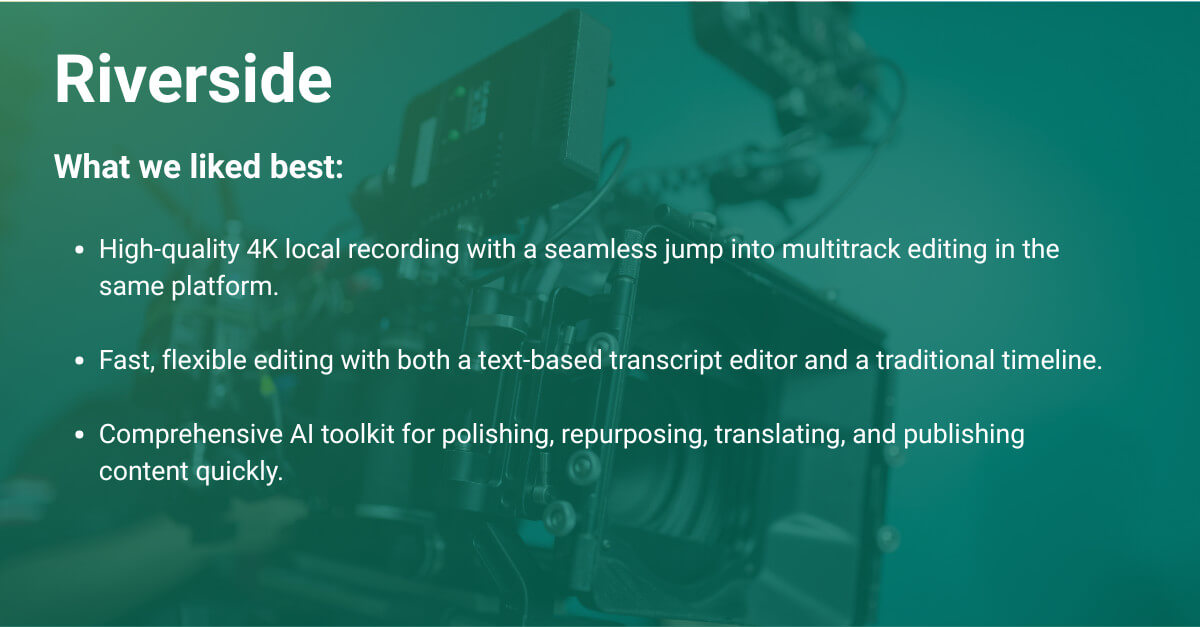
What it does: Riverside is an all-in-one recording, editing, and publishing platform, making it an ideal solution for anyone creating audio and video podcasts, YouTube episodes, and webinars in one platform.
Why it’s good: I personally use Riverside for all my interviews and rely on its high-quality 4K local recording. It’s great because you can jump straight into the multitrack editor without switching platforms.
The text-based editor saves a lot of time, letting you edit your recording via transcript. This makes it easy to quickly find specific parts of your recording to cut or adjust. For more precise cuts, there’s still a traditional timeline available.
Riverside also features an AI agent, Co-Creator, which you can prompt to either edit or repurpose your content.
AI features: In the editor itself there’s an array of AI tools for polishing your content. You can clean up audio, remove filler words, shorten silences, add AI B-roll, and more. There’s also AI translation to dub videos with lip-sync in another language.
And if you want to create content from your video without starting from scratch, Riverside automatically generates hooks, social-ready clips, longer segments, and even entire episodes from your recordings.
You also get an AI transcript, show notes, and you can generate LinkedIn articles, blog posts, and even thumbnails.
Once you’re done, you can publish content directly to your connected social media channels.
How to try it: Sign up for Riverside’s free plan to try it out. The AI Master YouTube channel has a great walkthrough of the Co-Creator’s features to get you started.
Pricing: Riverside has a pretty generous free tier, although it is watermarked. The cheapest monthly plan is $29, but there are discounts when purchasing annually.
Final thought: Riverside offers an affordable yet comprehensive all-in-one recording-to-publishing platform for video podcasters, webinar hosts, and tutorial creators that keeps improving with every new addition. If you’re creating that kind of content entirely manually, Riverside is worth considering to help you get more done faster.
2. DaVinci Resolve (best for colorists)
- Best for: Colorists
- Best AI tool: Magic Mask / Noise reduction
- Price: $295/lifetime
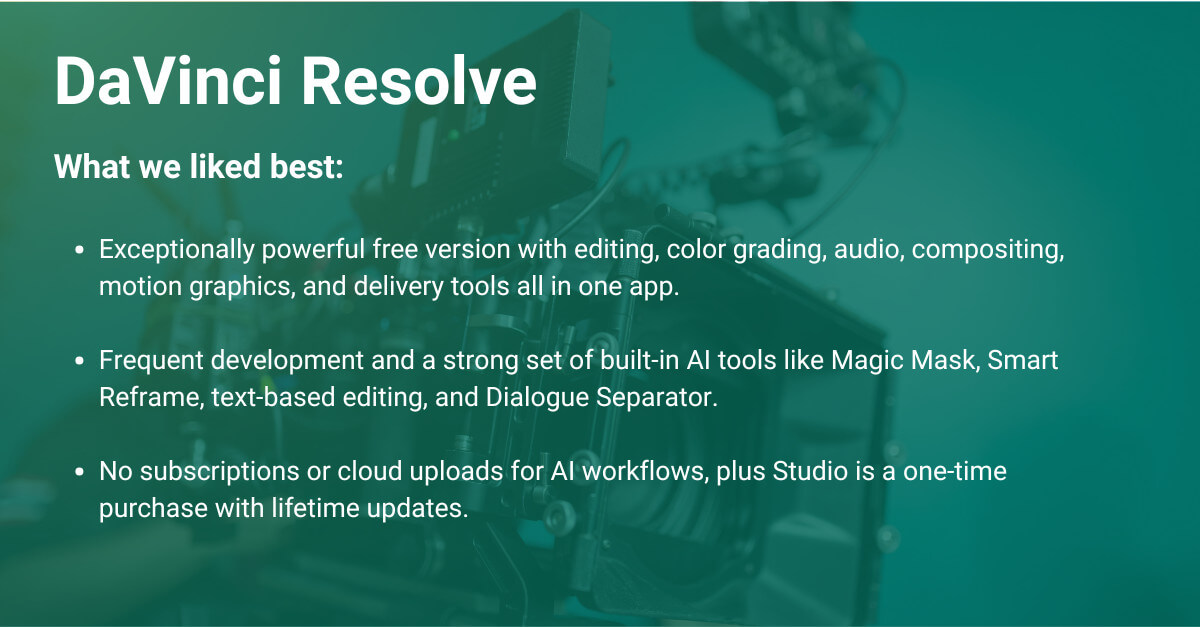
What it does: DaVinci Resolve is one of the big four video editing software options used by professional editors today, along with Avid, Premiere, and Final Cut Pro. The free version offers the most powerful feature set of any free video editing software, including editing, color grading, audio mixing, compositing and motion graphics, plus delivery toolsets. It’s essentially four apps in one.
Why it’s good: DaVinci Resolve has one of the most dedicated and ferocious development cycles around, so new AI features appear frequently.
The best part about DaVinci Resolve’s AI features is that they’re all within the app, so there are no logins, no subscriptions, and no uploads to slow you down. Please note that the DaVinci Resolve Neural Engine – the “brain” powering its best AI tools – is only available in the paid Studio version.
AI features: There are too many to mention in detail, but here’s a quick list:
- Magic Mask: Person/object/feature isolation
- Face Detection: Create smart bins of people and objects=
- Speed Warp retiming with Neural Optical Flow
- Super Scale: AI upscaling
- Scene Cut Detection for automating cuts on flat files
Greg Edits Video has a brilliant walkthrough of some of Resolve’s best AI features and real-world use cases. This includes the Magic Mask, which allows you to select any object and rotoscope it within a shot in a couple of clicks.
Pricing: DaVinci Resolve Studio costs $295, but it’s a one-time purchase with a lifetime of free updates.
Final thought: Regardless of which video editing software you prefer, if you’re a professional editor, having access to DaVinci Resolve Studio’s AI feature set can save you a ton of time.
If you’re new to video editing, DaVinci Resolve Studio is an incredibly affordable way to start working with professional tools – many of which you will likely use for the rest of your career.
3. Descript (best for podcasters)
- Best for: Podcasters
- Best AI tool: Underlord chat to edit
- Price: $24/month
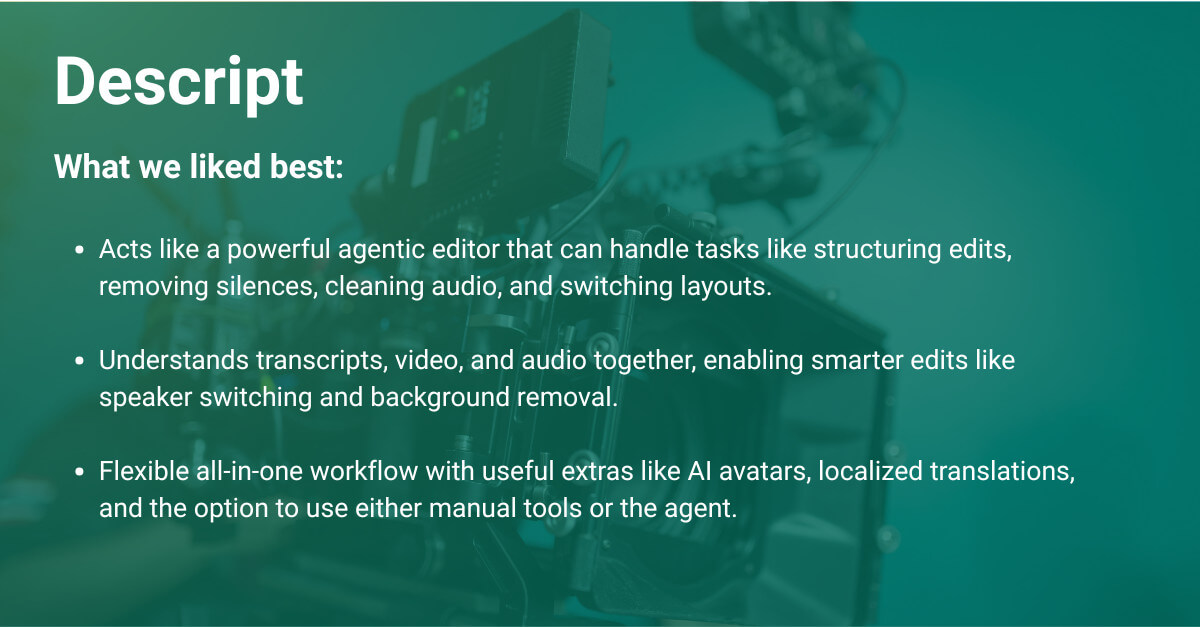
What it does: Descript offers a similar all-in-one studio experience to Riverside, with a few unique AI features such as AI avatar and in-chat image generation.
Descript’s AI, Underlord, has evolved into a fully-fledged agentic editor you can command to “vibe edit” your way to a finished video. It can structure edits, remove silences, clean up your audio, switch between templated layouts, and perform more than 20 other tasks.
Why it’s good: Because Underlord has access to your transcripts, video, and audio, it can see and hear your source footage and final edit, which means it can remove backgrounds, switch between speakers, and much more.
What’s really helpful is that the user interface provides plenty of details about what Underlord is thinking or doing, which lets you monitor its plans and execution. You can also select your large language model (LLM) of choice to perform different tasks at different stages of the edit.
I uploaded a 40-minute interview and asked it to create a five-minute summary with its own narrative arc from conflict to resolution. This mostly worked. But the edits were pretty rough – especially when I removed the filler words and asked Underlord to edit for clarity. Despite these wrinkles, it’s pretty impressive.
AI features: Descript’s AI avatar generator seems particularly valuable for YouTubers, corporate training videos, explainer videos, and other quick turnaround video creators. While Descript admits these avatars won’t look like real people (for now, at least), they add an emotive face to otherwise faceless content in a couple clicks. Complete with localized translations.
How to try it: You can get started with Descript’s free plan.
Pricing: Descript’s free plan is good to get a taste but if you want to do any real work, you’ll need a paid subscription starting at $24/month. Descript offers a substantial discount of 35 percent when subscribing annually.
Final thought: Given that Descript is building on an existing product that already had comprehensive text-based video editing features and useful AI-powered fixes, it feels like it has a head start on delivering an agentic video editor that delivers usable results. It’s also very flexible, allowing you to use either built-in editing tools or the agent.
💡 Go Deeper: The Top AI Audio Cleanup Tools
4. Adobe Premiere (best for professionals)
- Best for: Professional editors
- Best AI tool: Object Mask
- Price: $35/month
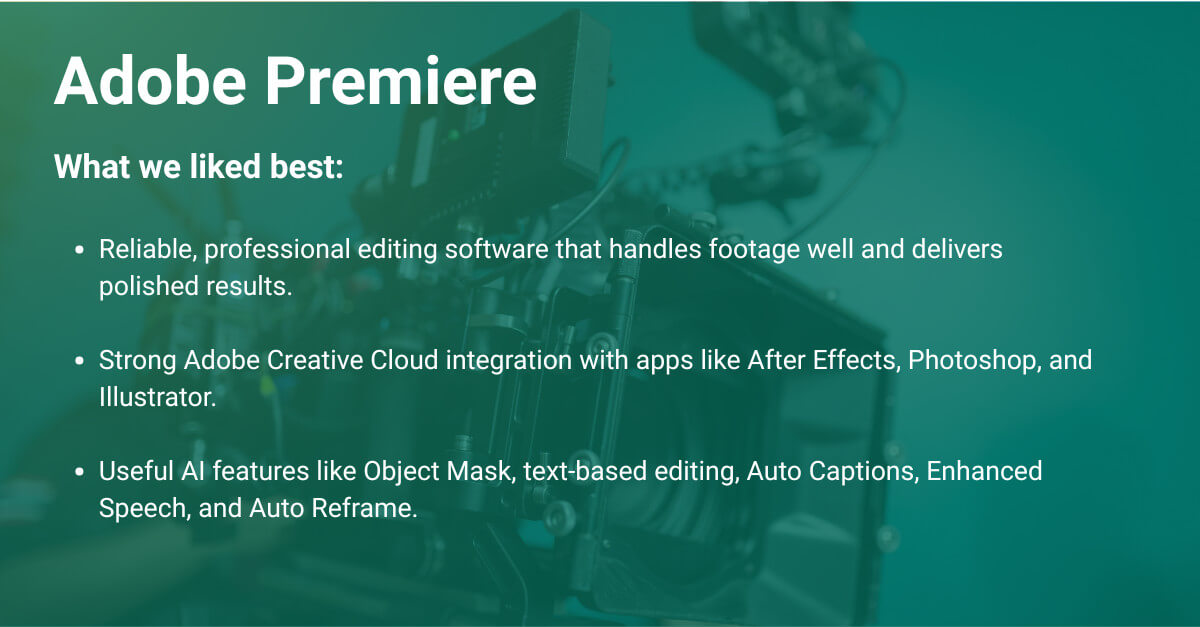
What it does: Adobe Premiere (formerly Adobe Premiere Pro) is a professional video editing app for Mac and Windows used by millions of editors around the world, including high-end TV and feature film editors.
Why it’s good: Adobe Premiere is reliable, easy-to-use video editing software that can easily handle any footage you drop into it, and makes delivering polished projects a breeze with native colour grading and audio sweetening tools.
Because it’s part of the Adobe Creative Cloud ecosystem, it seamlessly interacts with apps such as After Effects, Photoshop, Illustrator, and more. There are also hundreds of plugins and extensions you can download to add essential features to your toolset.
AI features: Premiere has slowly added useful AI editing features over the past few years, such as:
- Object Mask: Rotoscope anything in a click
- Media intelligence/search: Use natural language to find things in your footage
- Text-based editing and automated captions with translation
- Auto Reframe: For social media videos
- Color Match: Auto-balance your grade across clips
The brand-new Object Mask (released early 2026) is incredibly useful for elevating the creative possibilities of your project, from integrating more complex motion graphics into live-action scenes to simpler tasks such as replacing backgrounds.
How to try it: Download the free trial.
Pricing: While you can get Adobe Premiere as a standalone app for $34.49/month, an annual subscription to Adobe Creative Cloud (with 20-plus apps) drops that monthly cost to $22.99. But it’s also worth keeping an eye out for special offers.
Final thought: As a lifelong Adobe Premiere user, I love seeing new AI features added to software I have a ton of experience using. That said, Premiere’s AI features tend to arrive at a more gradual pace than that of development in the rest of the AI world.
This means that some of the biggest developments in editing with AI in Adobe Premiere come more from plugins like Jumper than Adobe themselves.
P.S. Adobe just announced Quick Cut, its online video editor for prompt-to-edit workflows. You just have to upload your media but it will do all the work for you.
5. Runway (best for generative effects)
- Best for: Visual/video effects artists
- Best AI tool: Node-based workflows
- Price: $15/month
What it does: Runway is an AI research lab and generative AI company that produces its own image and video models as well as a plethora of innovative tools, such as Act II, which uses video capture to drive AI character performances.
It has also added other image and video models such as Nano Banana Pro, Kling, and VEO into its platform, so you can use the latest and greatest models to create video or other assets.
Why it’s good: The Runway online AI video editor features astonishing tools, including real-time Runway Characters, but the usefulness of its wide range of apps are what make it a powerful place for editors and compositors.
AI features: Every Runway tool uses AI, but here’s a quick list:
- Generative image and video (text/image/video to image/video)
- Upscale image and video
- Object removal
- Generate set extensions
- Change the weather
How to try it: Start for free with 125 credits to explore the Runway toolset, although the best way to really get to know this software is to use it in a real project.
Pricing: Its most affordable plan is the cheapest of all tools reviewed in this article, at just $15/month for 625 credits.
Final thought: Every editor should play with Runway. It is the Swiss Army Knife of AI-powered tools, and worth exploring if you want to do more with AI than just using an automated video maker for video generation. Its node-based workflows also make it easy to re-use production workflows: For example, if you have a specific green-screen replacement workflow you often use.
6. Topaz Video (best for enhancement)
- Best for: Editors and AI filmmakers
- Best AI tool: Astra upscale
- Price: $69/month
What it does: Topaz Labs has become the de facto upscaling algorithm for the industry, and its product is now found in Adobe Firefly, ElevenLabs, and other host platforms. It also has the best image and video restoration tools around. There are desktop and cloud-based versions available.
Why it’s good: Having experimented with Topaz Labs on several recent projects, it can deliver shot-saving results such as soft-focus fixes, upscaling old footage, cleaning up bad footage, and much more. Knowing how to use these tools can make you a hero in the edit suite.
AI features: Every tool Topaz offers is AI-powered, but its Astra model is designed for “creative upscaling” of AI-generated videos (which are often created as 720p). It does this by reimaginging and enhancing the details of a shot, although precise mode will keep the clip mostly the same – just in a higher resolution with a sharper appearance.
Its AI upscaling can output 1080 or 4K video with crisp, clear details. The team behind Secret Mall Apartment used Topaz to transform 320 x 240 pixel footage into 4K final files, for example.
How to try it: You can sign up and test out many Topaz tools, such as its Video Enhancer tool, for free online.
Pricing: Access all seven Topaz Labs tools for $69/month billed monthly, or save $32 each month with an annual subscription (at $37/month). It’s even cheaper if you pay up front.
Final thought: Topaz should be up every editor’s sleeve. It can deliver magical results on footage you thought might have been beyond rescuing, but it takes a decent amount of computer power to do so. While you can render shots locally, it’s sometimes better to buy cloud credits and render on Topaz’super-fast infrastructure.
7. Eddie AI (best assistant editor)
- Best for: Editors who need an assistant
- Best AI tool: Multi-cam auto editing
- Price: $199/month
What it does: Eddie AI is your new assistant editor. It can log footage, add descriptions and metadata, create rough cuts of multi-camera interviews, analyze source material, and build an edit with a story framework based on your prompts. Put simply: Eddie does it all.
Why it’s good: In my brief testing, it took about 15 minutes for it to import (presumably transcoding and transcribing) three hours of interview material on a 2025 M4 Max MacBook Pro. The text summary Eddie generated was detailed and accurate.
The first-time user experience was very smooth: The UI guides you through the app step-by-step and lets you make your first edit in about 20 minutes of experimenting. It created each section of its four-part story framework (intro, conflict, resolution, and conclusion) in stages so I could separately review and iterate on each part. This all worked pretty well. I was impressed.
It also lets you chat with Eddie about your transcribed footage and collaboratively work your way towards a rough cut. You can even add in contextual information – such as an event page or brand website – so Eddie has an understanding of what your interviewee (for example) is talking about.
What I also like about Eddie AI is that it’s built to work in conjunction with professional video editing software, not as a competitor to it. So you can still build and refine your edit the way you’re used to.
How to try it: While some of Eddie’s original features are still available to test, Eddie is now mostly a desktop app that works on both Mac and Windows. You can download the app to get started.
Pricing: The free tier gets you in the door for testing, and you can buy credits at $15 per as needed. The Pro tier is $199/month with 10 project exports and more professional features.
Final thought: What Eddie’s team is building feels like the logical conclusion of what happens when AI prompting meets video editing. And it will only get more effective.
As a professional editor, I’m not convinced that AI editors (at least in the short term) will get past the inherent responsibility placed on human editors: Watch all the footage, find the best bits, make something, persuade the client these really are the best bits.
That said, Eddie’s tools should help editors get started faster.
8. Jumper (best co-editor)
- Best for: Editing co-pilot
- Best AI tool: Find Similar
- Price: $169/lifetime
What it does: Jumper is a standalone app and plugin for Final Cut, DaVinci Resolve, Avid Media Composer, and Adobe Premiere that uses AI vision and speech-to-text models to create a searchable index of all your footage.
Why it’s good: Jumper can search for shots, speech, and faces using natural language; you can type in what you’re looking for and Jumper finds it.
AI features: My favourite feature in Jumper is the “Find Similar” button, which helps locate similar shots to cut into your current sequence. You can also search by image, so if a client or producer sends you a random screengrab you can identify it in a couple of clicks.
Jumper has also added agentic editing to its capabilities, which means you can give a task to Claude Code or OpenAI Codex – such as “Find all the shots of the bride smiling” – and it will search via an MCP connection to Jumper, creating a timeline of those shots that can be imported into your edit.
How to try it: Head to the Jumper site and download the free trial. No credit card required.
Pricing: Jumper has per-seat lifetime pricing (which is a bargain), but you’ll need the $599 Pro tier for agentic editing and facial recognition.
Final thought: Having a searchable index of your footage is a huge time-saver for any project. Although you can do this natively in Premiere, I’d wager that Jumper’s searches are more accurate (although I’ve not tested this).
9. Quickture (best for Avid editors)
- Best for: Avid editors
- Best AI tool: AI summaries and auto edits
- Price: $499/month
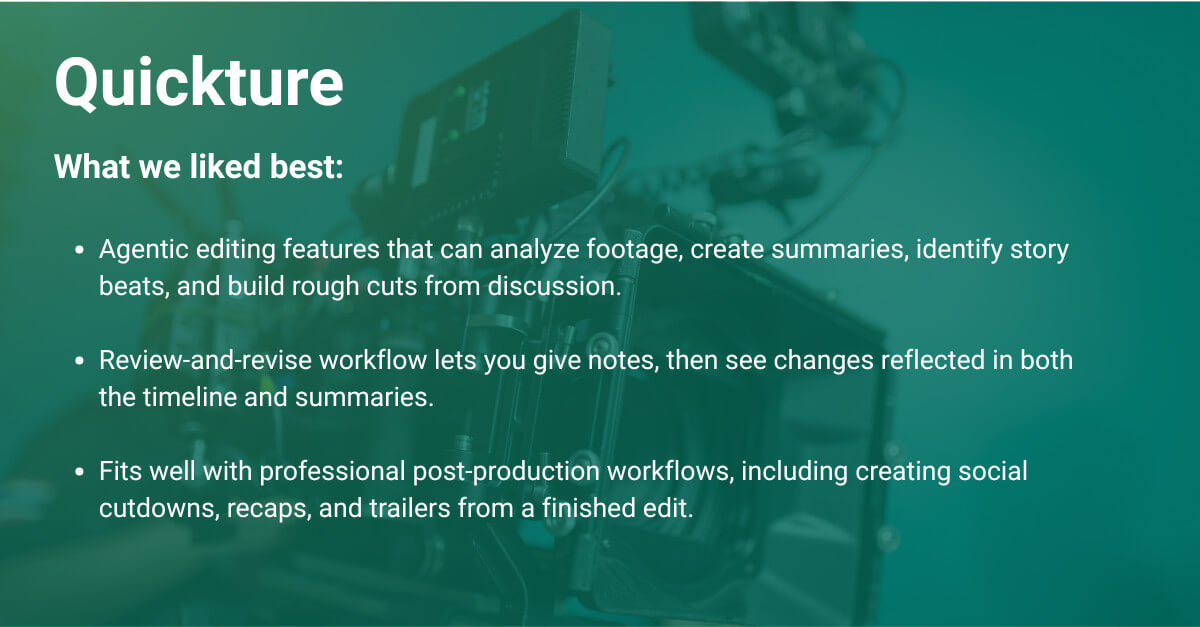
What it does: Quickture is essentially an agentic editing app – but unlike Jumper, it doesn’t connect via an MCP server to Claude or Codex. But it can analyze your footage, create summaries, list story beats, and create rough cuts based on a discussion with you.
As it has a vision model for watching the footage, and transcription in multiple languages, it can find shots of specific people and cut together entire episodes with interviews and B-roll.
Why it’s good: You can amend the rough cut by giving notes on current progress, then review those changes in the timeline and in summary form – kind of like when the editor emails the client to ask about which changes got made!
AI features: All Quickture features are AI powered, but one of its standout features are summaries and transcripts designed in a way that video professionals will find extremely useful.
It’s this attempt to fit into existing post-production mental models that makes Quickture look like an AI assistant editor you could get along with. For example, you can build your episode with Quickture, polish it by hand, and then re-ingest your final edit to create cut downs for social media posts, re-caps, and trailers from the finished project.
How to try it: Quickture has a 14-day free trial, but to access it you need to put in your credit card details, so you’ll be automatically charged that first month.
Pricing: At $499/month Quickture is by far the most expensive app in this list.
Final thought: Agentic editing made easy by Quickture is surely the future of a lot of editing workflows. I’m not sure this is entirely a good thing, in that watching the footage, understanding the material, and building your own creative connections is where you learn the editing process.
While having an on-demand assistant to take care of some of the tasks, or to speed up those tasks is a benefit, you don’t want to take yourself out of the loop entirely.
10. Spingle AI (best for footage culling)
- Best for: Culling footage from hours to minutes
- Best AI tool: Auto remove shaky footage
- Price: N/A (in beta)
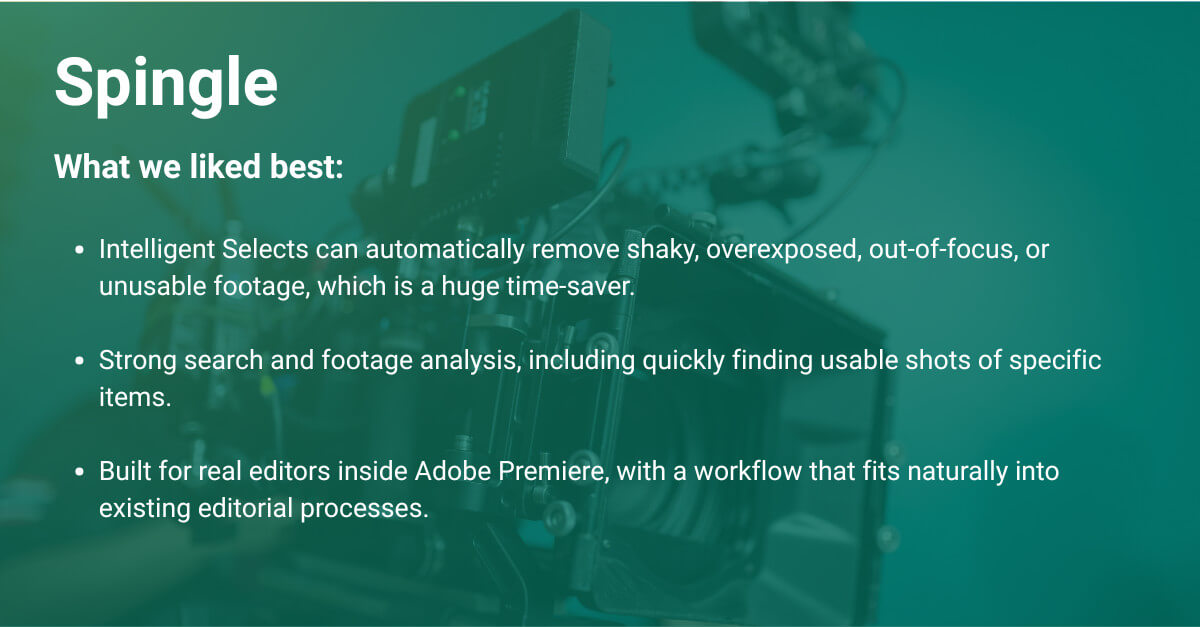
What it does: Spingle is now in open beta, although the development process hasn’t been as fast as other apps. Yet Spingle has some promising features that I’ve not seen in other AI video editing tools.
Why it’s good: Uniquely, Spingle can create Intelligent Selects by cleaning up your raw footage and cutting anything too shaky, overexposed, out of focus, or otherwise unusable.
It does this by uploading everything to the cloud (an hour of footage will take about an hour for Spingle to prep). Tip: Use proxies and a fast internet connection to speed up this initial process. Or leave it running overnight if you need to process a lot of footage (but you should still use proxies).
When you use the Spingle plugin inside Adobe Premiere, many users will feel right at home. A DaVinci Resolve plugin is coming soon.
In my own testing, Spingle took about 20 minutes to chew through around 30 minutes of raw documentary footage – but only 30 seconds to cull/clean that footage by pulling out the shaky, out-of-focus or unusable footage. This was pretty remarkable to watch, and the results were very good.
AI features: I tested the search feature, prompting it to find all usable existing footage of a specific item within the raw rushes. It also did this remarkably well. Because the analysis data is cached locally, it happened in a few seconds.
Another feature promises to provide the ability to “train Spingle on past projects to create your own custom AI templates for any style you want.” This has benefits if you are a decent editor and want to replicate a specific client’s stylistic choices, but it could also allow users to rip off another editor’s style.
(Which is actually how most learn to edit in the first place, but now it will be automated and you’ll learn nothing.)
How to try it: Fill in the early access form and download the latest version.
Pricing: Undisclosed.
Final thought: What I like about Spingle is that it’s developed for video editors, by video editors. For example, when it automatically makes selects based on your prompt it does so by lifting these onto Track 2, which is how I pull my selects today.
The current version is very impressive and delivers an AI assistant that speeds up your editorial workflow. Whatever Spingle manages to create, it will likely fit nicely into existing editorial workflows, making it a genuine win for human editors.
How MASV Complements the Best AI Video Editors
So which is the best AI video editor?
- Riverside is my top pick for its seamless all-in-one workflow, combining 4K local recording, transcript-based editing, AI tools like Magic Clips and Co-Creator, and direct social publishing in a single platform.
- DaVinci Resolve Studio stands out for its extensive built-in AI toolkit, rapid development cycle, and value as a one-time purchase that gives professional editors powerful tools like Magic Mask, noise reduction, and Smart Reframe without any subscription.
- Descript earned its place in the top three for its impressive agentic editor that can structure, polish, and repurpose content through simple chat prompts, making it one of the most practical AI-assisted editing tools for podcasters and content creators.
Here’s the thing, though: AI video editors don’t help when you need to move heavy video clips from the camera to storage, or from your local storage to a client.
Shipping hard drives is slow and potentially risky, and off-the-shelf video file transfer platforms aren’t built for the scale and reliability you need to transfer terabytes of original camera media between production and post.
That’s where MASV comes in: MASV moves file packages of any size anywhere in the world with speed and relentless reliability, helping to empower editors to work with projects of any size while avoiding the limitations of standard cloud tools.
MASV also maintains essential folder structures and metadata. It’s fast and affordable, with simple and flexible pricing, from pay-as-you-go to annual subscriptions.
You can sign up for MASV for free right now to test your AI video workflows.
This post was originally published July 10, 2025 and was updated March 25. 2026.
Crush It With MASV
Leave your deadlines in the dust with MASV’s mind-bendingly fast and relentlessly reliable large file transfer.