
Boost Transfer Speeds with MASV Multiconnect
Combine multiple internet connections for the fastest file transfer in the world.
3X Your Uploads ⏱
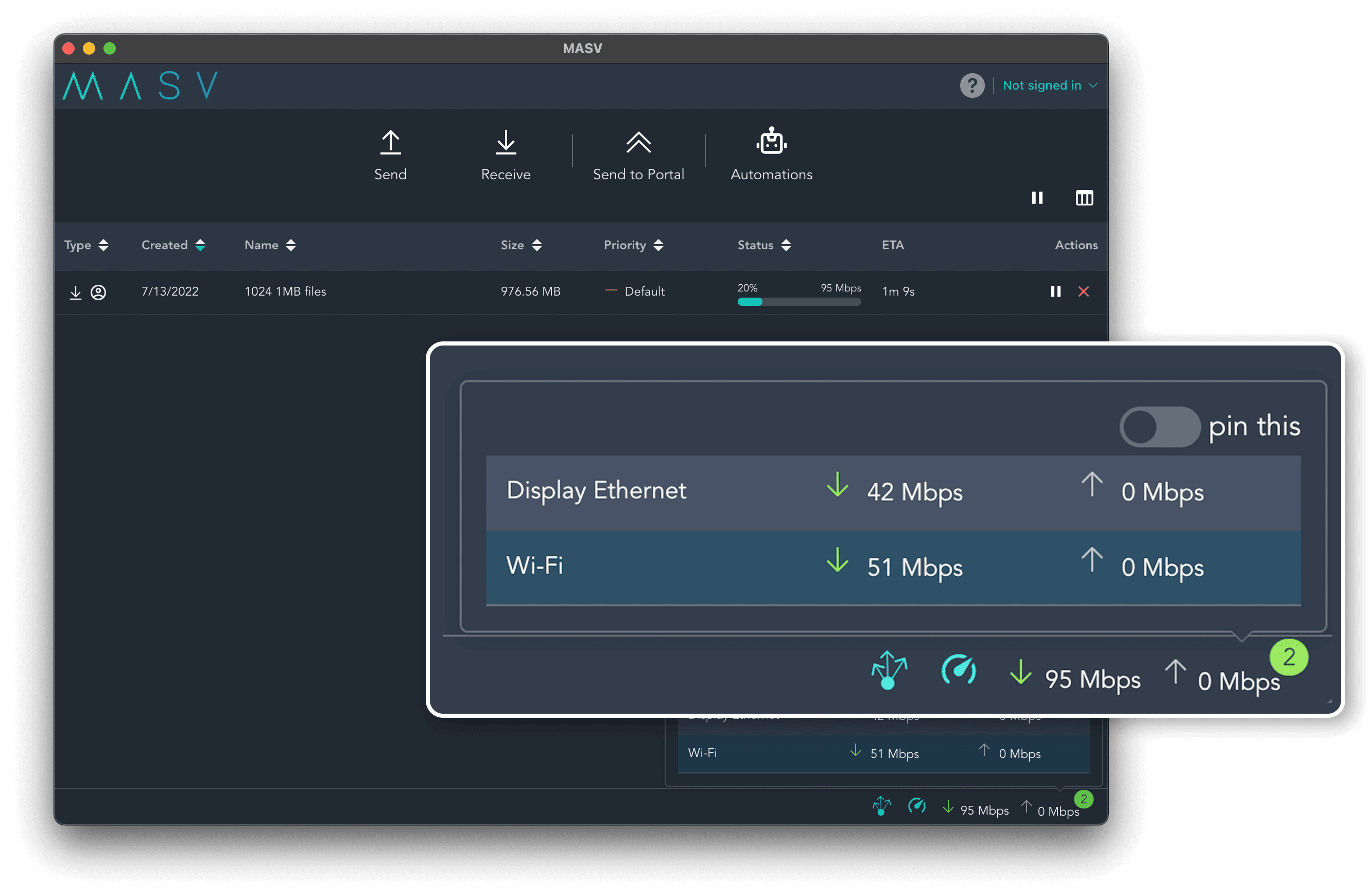
MASV Multiconnect is MASV’s channel bonding interface. It allows you to connect multiple internet connections (such as 5G + Wifi or Ethernet + LTE) into a single reliable, high-speed pipeline by splitting the data you’re uploading or downloading across all your available connections.
- MASV intelligently manages these connections behind the scenes, ensuring each one fires at full capacity without dropping data or causing disruptions.
- The feature is fully integrated into the MASV Desktop App, designed to be user-friendly and automatic. Once you open the app, MASV does all the behind-the-scenes work to bond your connections.
MASV Multiconnect is a must-have when you’re working remotely, don’t have access to a strong internet connection, or shooting on location. With Multiconnect, media professionals can upload large files in less time than it takes to load the truck!
The World’s Fastest File Transfers Just Got Faster
Using MASV Multiconnect, you can transfer files with multiple internet connections. Whether you’re sharing files over wifi, cellular data like 5G, satellite internet like Starlink, or a hardwired ethernet connection, Multiconnect bonds multiple internet connections to guarantee the fastest uploads possible.
- How much time you will save depends on the speed of your respective connections. For example, if you have access to a 5Gbps or 10Gbps connection, your transfer speeds using Multiconnect will be significantly faster. To calculate your estimated transfer time, check our file transfer calculator or use the following equation:
File size in GBs x 1024 x 8 / mbps / = X/3600
Maintain Complete Control Over Upload and Download Speeds
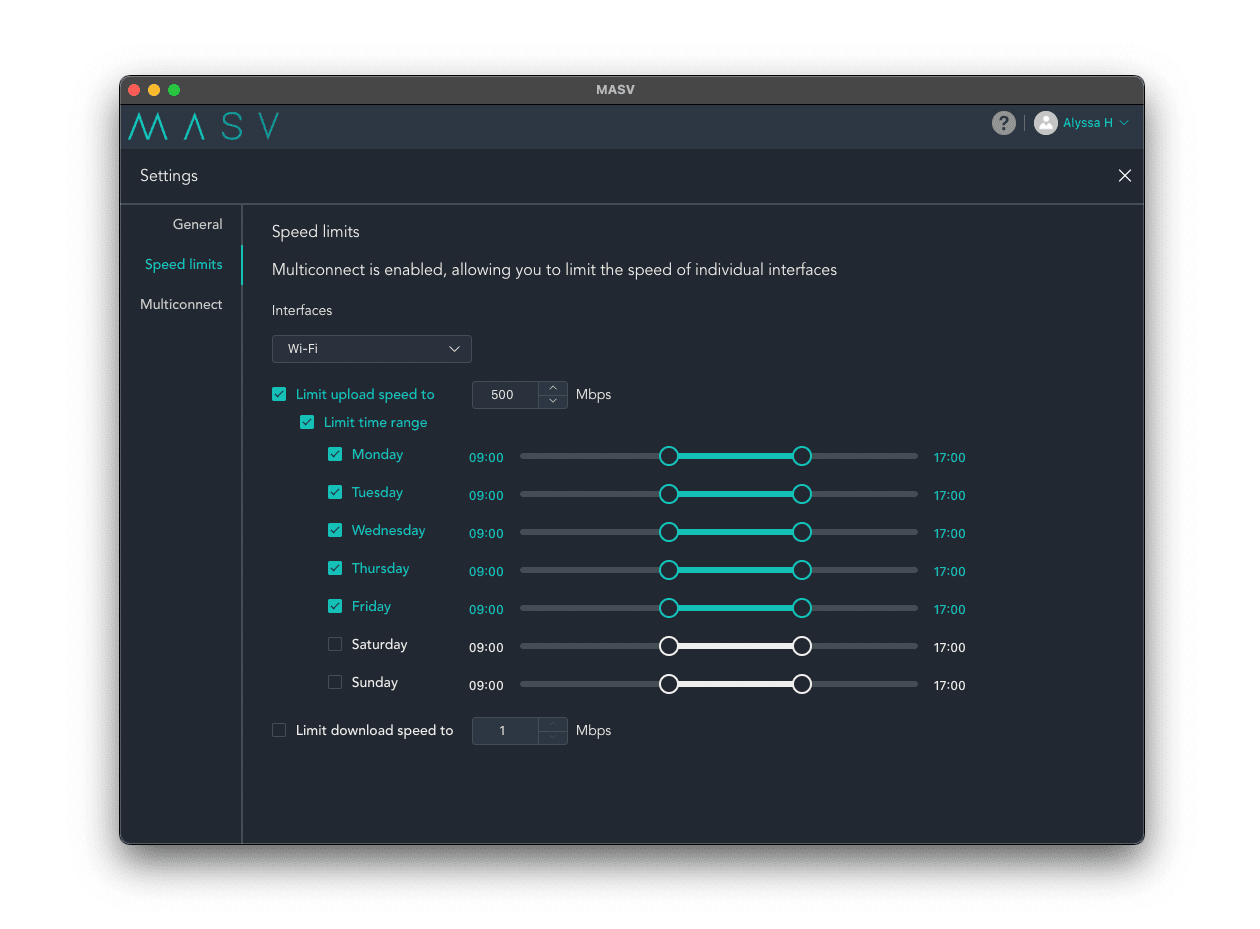
During busy studio hours, you may prefer to limit the speed of a particular connection. Using the “Speed Limits” feature, you can choose the upload and download speed for each connection and for each day of the week.
Channel Bonding Best Practices
There are three main approaches you can take during channel bonding:
- Bonding wired connections: The most straightforward approach ideal when reliability and consistent upload performance are critical. However, since most workstations include only a single Ethernet connection, you’ll likely need to add USB or Thunderbolt adapters to connect additional network connections.
- Bonding wired and Wi-Fi connections: Wi-Fi can only connect to a single network at a time: You cannot bond multiple Wi-Fi networks unless you have multiple Wi-Fi network interfaces in the same workstation. It’s important to keep this in mind when trying to connect and bond multiple network devices.
- Bonding wired and cellular connections: You can combine an Ethernet connection with cellular data from a mobile phone or hotspot tethered via Wi-Fi or USB, or create a hybrid connection that maximizes available bandwidth. USB offers much greater performance and reliability than tethering via Wi-Fi.
When bonding multiple channels within the MASV Desktop App, you should always:
- Use separate network connections: Any connections should not be on the same network. For example, if you connect to Ethernet and Wi-Fi from the same router or ISP, you could see slower-than-expected speeds.
- Be mindful of network interfaces: You need an interface for every network you want to use. Want to bond multiple Wi-Fi networks? You’ll need multiple Wi-Fi cards in your workstation. Multiple Ethernet connections require a port for each connection.
- Use your mobile device’s USB: Using a USB tether offers a more stable connection than Wi-Fi when channel bonding with a mobile device.

Channel Bonding: Practical Use Cases
What kind of scenarios and workflows benefit most from channel bonding?
- Remote locations and live events: Shooting on location usually means dealing with spotty connectivity; live sporting and entertainment events rarely have reliable internet connections. Luckily, wireless 5G hubs can be used to provide reliable internet access. Once you’re connected to these devices, bond them to achieve the best performance.
- Studio environments: Some studios rely on multiple ISPs to keep their offices running (one line for video calls and general office use, and the other for large file transfers). MASV can take this to the next level with bandwidth scheduling: Bond connections together and schedule MASV to keep usage low during busy periods, then open it up again when the office isn’t busy.
- Road warriors at hotels: With remote jobs comes the inevitable hotel stay – and while most hotels have free internet, it’s usually painfully slow. Bond your hotel Wi-Fi with a 5G hub and/or mobile phone to create a stable and robust connection.
The Speed Test ⏱️
This all sounds great in theory, but we need to see how this actually works in the field for a realistic understanding of Multiconnect’s performance. MASV tested Multiconnect using a package upload of ProRes LT files totalling around 10GB.
We first ran some initial tests to get a baseline of each device and network. Each speed test was run three times, and an average was calculated from that.
The first thing we’ll measure is the speed of the SSD we are reading and writing from. This a very important step that is almost always overlooked: You may have the fastest network connection, but if your storage can’t match or exceed those speeds, it may all be for naught.
| Storage | Max Read Speed (MB/s) | Max Write Speed (MB/s) |
|---|---|---|
| 1TB NVMe SSD | 1880 | 2279 |
Now that we know our storage can handle the read/write speeds our network can deliver, we’ll test each network individually and then a combination of each. (We unfortunately can’t test the wired connection along with the Wi-Fi connection, since they both use the same router.)
| Individual Networks | Max Download Speed (Mbps) | Max Upload Speed (Mbps) |
|---|---|---|
| Wired (1Gbps) | 940 | 810 |
| Wi-Fi (1Gbps) | 343 | 292 |
| 5G cellular (USB tether) | 55 | 14 |
The upload speeds on the cellular network are exactly why we do these types of tests: It’s easy to see the disadvantages or benefits of each network for what we were trying to achieve (in terms of uploads and downloads). Needless to say, I probably wouldn’t choose the 5G network as part of an upload-heavy workflow.
But if I was working on a remote shoot and needed to receive files quickly, the 5G network would be a fantastic option to bond with a wired or wireless network.
So how does each network fare when bonded together, and we need to download a real-life package?
| Bonded Networks | Max Download Speed (Mbps) | Max Upload Speed (Mbps) |
|---|---|---|
| Wired + cellular | 985 | 824 |
| Wi-Fi + cellular | 402 | 316 |
Results
When combining these connections using Multiconnect, the results show a significant improvement in both download and upload speeds.
For instance, bonding the wired connection with 5G cellular increased our max download speed and upload speed, maximizing the combined potential of these networks.
Meanwhile, the Wi-Fi + cellular combination provided a substantial boost as well, even if not as drastic as the wired pairing, which is exactly what we’d expect based on the performance of each network individually.
This hybrid approach provides great flexibility depending on your project’s requirements and available infrastructure. Channel bonding means you don’t have to choose between reliability and speed – you can blend connections to optimize for your current setup
Start Using Multiconnect to Combine Internet Connections
- Download and install the free MASV Desktop app for Windows, MacOS, or Linux
- Open the MASV app
- Once the app is open hover over the drop-down in the top right and select “Settings”
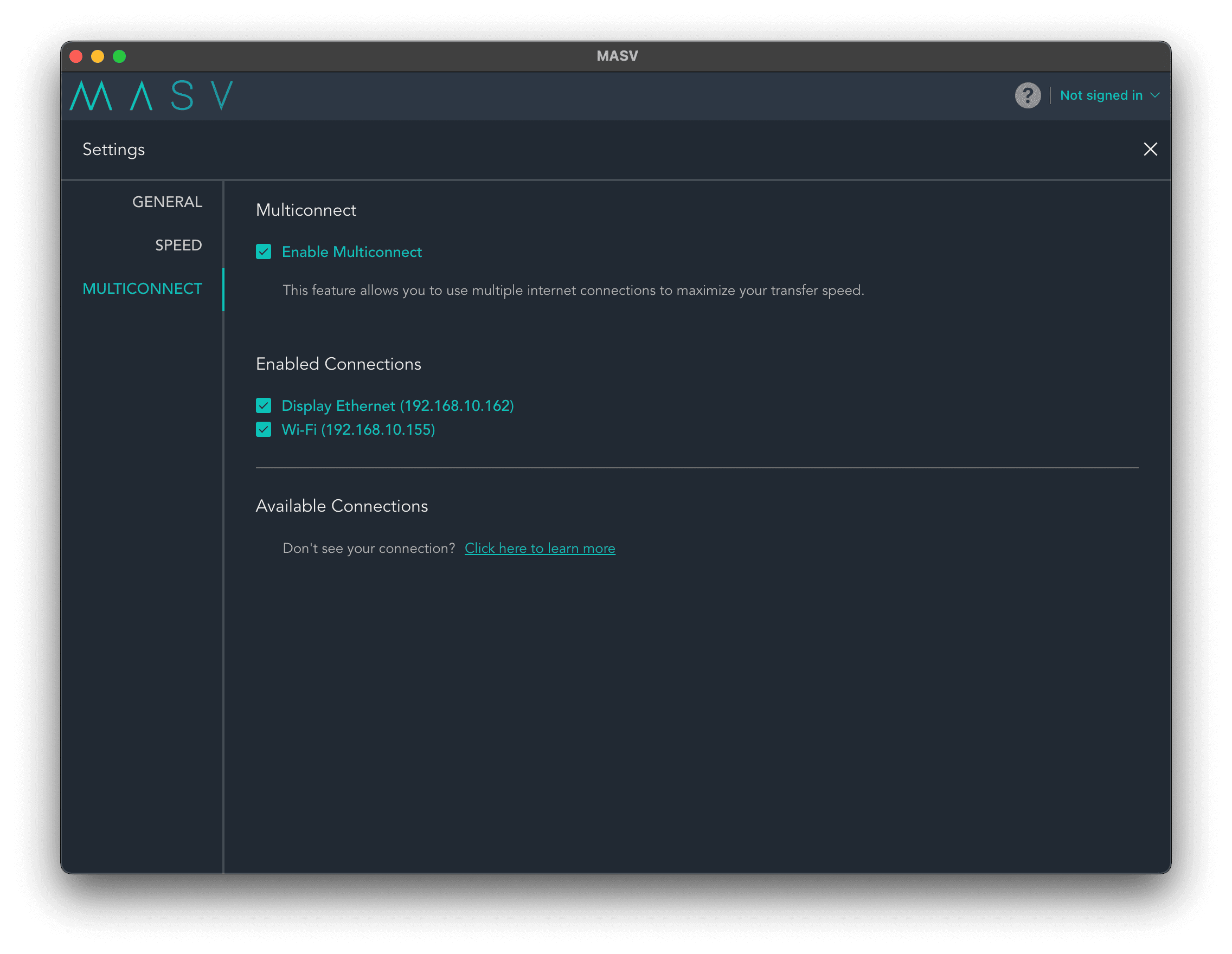
- Select the new menu option on the left called “Multiconnect”
- Click the toggle switch to enable Multiconnect
- There will be a list of all available connections, select the ones you want to enable
- Once a connection is enabled the MASV App will use those accordingly
A Step-by-Step Guide to Setting up Multiconnect
To use Multiconnect with your iPhone
When you use an iPhone there are two ways to use Multiconnect;
1) Mobile Hotspot via Wifi + Ethernet:
- Connect an ethernet cable to your computer. You can use a direct ethernet port or a USB adapter
- Connect to the iPhone’s hotspot (often called “Personal Hotspot”) from your computer’s wifi settings
2) Mobile Tethering via USB + Wifi:
- Connect your computer to your wifi as normal
- Next, plug your iPhone into your computer via a USB cable
Note: If you’re using Mac: once the iPhone is plugged in you will need to go to your Mac’s network setting and select iPhone USB. From there, deselect the option “Disable unless needed”. Once the setting is off you will be able to see both options when you are in the Multiconnect settings in the MASV desktop app.
To use Multiconnect with your Android Phone
With the Android there are two ways to use Multiconnect;
1) Mobile Hotspot via Wifi + Ethernet:
- Connect an ethernet cable to your computer. You can use a direct ethernet port or a USB adapter
- Connect to your phone’s hotspot from your computer’s wifi settings
2) Mobile Hotspot via USB + Wifi:
Note: if you’re using a Mac, then this might not work. Depending on which Mac device and macOS version, you could try installing HoRNDIS driver.
- Connect your computer to your wifi as normal
- Turn on USB tethering on your phone by going to Settings> Tethering & Mobile Hotspot. Toggle the “USB tethering” switch on
- Next plug your phone into your computer via a USB cable
Your Search is Over. Share Files of Any Size Today.
Transfer large files for free with MASV.
Frequently Asked Questions About MASV Multiconnect
What is channel bonding?
Channel bonding—also known as bonded internet, network bonding, a bonded channel, or Ethernet bonding—is the combining of two or more internet connections (such as Ethernet, Wi-Fi, or cellular) into a single, more powerful connection. It typically involves a primary channel and a secondary channel, and is a little like load balancing for your file transfer. This is to maximize the total connection bandwidth by spreading file uploads and downloads across those networks. If you bond a wired Ethernet connection with Wi-Fi, for example, data is uploaded or downloaded through both channels at once—significantly accelerating the process and providing a failsafe if one of your networks goes down.
Network bonding is particularly useful when working with low or unreliable connectivity or when transferring large files, as it can prevent network bottlenecks that often occur with a single connection.
What Types of Internet Networks Can I Combine?
You can only bond networks that are different from the one you are currently using. For example, if your phone and computer are sharing the same Wi-Fi, they are on the same network and can’t be combined. In this case, you need to use your phone’s data plan to open up a new network source for Multiconnect to work.
Some examples of networks you can connect:
- Wi-Fi (+ Wi-Fi dongles)
- Ethernet
- Cellular data (3G/4G/5G)
- Tethered smartphone
- Satellite internet like Starlink
Who Can Benefit from Combining Multiple Internet Connections?
MASV is here to help media professionals send and receive projects on time no matter what, so we’re always trying to find new ways to accelerate your projects.
Multiconnect is ideal for:
- Busy newsshooters on the go
- Film crews shooting on location
- Remote workers and staff working from home who need additive “burst” bandwidth to upload huge assets on deadline
- Anyone who needs to send or receive massive files like large video content with maximum reliability and speed
How Much Does Multiconnect Cost?
Your Search is Over. Share Files of Any Size Today.
Transfer large files for free with MASV.