
How to use proxies for editing, set them up in your NLE, and use MASV to move your massive files fast and securely
Modern cameras deliver breathtaking quality and are more accessible than ever before. But with every leap in resolution and colour depth, the editing process inherits new bottlenecks as big 4K, 6K, and 8K files strain your networks, storage, and patience. And that’s why a video proxy workflow is an absolute necessity.
-
Video proxies for teams managing distributed productions, post-production facilities, or large-scale marketing campaigns are a must-have.
-
But how to deploy and use proxy clips efficiently, securely, and at scale can be a logistical nightmare.
This guide explains what proxy workflows are, how to implement them in popular NLEs, and how to solve the biggest challenge of all: moving massive files between locations.
Table of Contents
Send files of any size, effortlessly
Whether you’re sending proxies or 8K original camera media, MASV cloud transfer has got you covered.
Why Proxies? The High-Resolution Problem
All those pixels in super-high resolution footage come at a cost:
- Just one hour of 6K BRAW can reach nearly 900 GB.
- Even on high-speed networks, these kinds of massive files are not something you can casually sync to the cloud or send to a remote editor.
- Multiply that by dozens of camera cards, multiple shoot days, and hundreds of collaborators, and suddenly your workflow feels less like creative collaboration and more like network triage.
Incorporating proxies into your workflow solves the file size conundrum. By generating lower-resolution, lightweight proxy versions of your source media, teams can edit faster, collaborate from anywhere, and keep their infrastructure running smoothly.
In enterprise and other fast-paced production environments, however, proxy workflows aren’t just about speed – they’re about control. They allow teams to balance performance, quality, and data security across every stage of production, from camera ingest to final color.
What Are Video Proxies?
A video proxy is a lower-resolution duplicate of the original camera file (OCF), created for smooth playback and efficient editing. Proxy formats can include codecs like ProRes, DNxHD/DNxHR, CineForm, or h.264/h.265.
When you enable proxies, you’re working with a stand-in file that mirrors the metadata and timecode of full-resolution files and is linked to the original video files. This means that after you attach existing proxy files, every cut, effect, and adjustment translates seamlessly back to the full-resolution media during conform or color. Video proxies must match the original audio channels for successful linking.
Key benefits of video proxies
-
Performance: Proxies enable real-time playback and editing of media files, even on laptops or less powerful workstations. No more buffering or dropped frames during creative review sessions.
-
Collaboration: Teams across different cities or continents can work on the same proxy clips online without needing terabytes of source footage. Editors use proxies while colorists and finishers relink to full-res files when needed.
-
Efficiency: By reducing file size and bandwidth demands, proxies ease the strain on shared storage and networks. IT teams can maintain uptime and throughput without over-provisioning expensive infrastructure.
The Step-by-Step Proxy Workflow
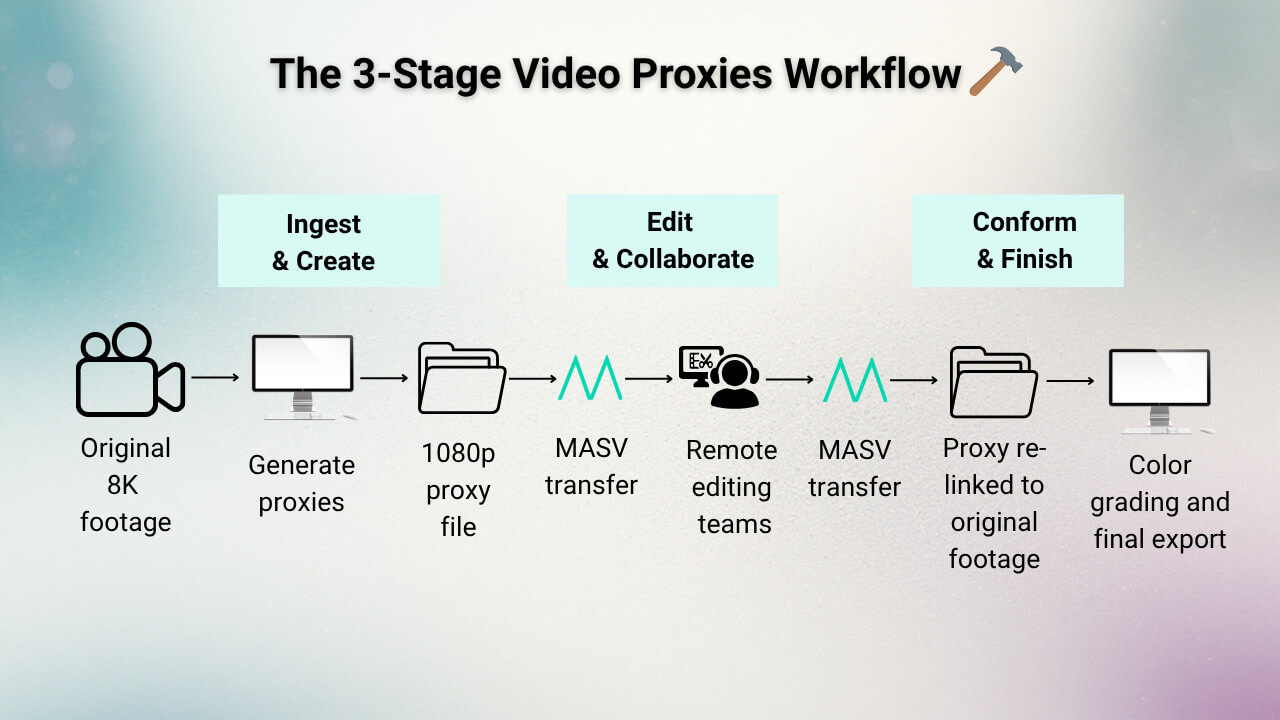
Every professional proxy workflow follows three core stages:
1. Ingest & proxy creation
After original media is offloaded from camera cards or shuttle drives, proxy files are generated using either camera-side recording (e.g., ProRes Proxy, h.264, h.265) or encoded in your NLE. The goal is to maintain a consistent naming structure and metadata link between proxy and original files.
2. Edit & collaborate
Editors import proxies into their NLE and cut as they normally would. Their lightweight nature keeps systems responsive and ensures real-time collaboration feels flawless during proxy playback, whether through shared project servers or cloud-based review tools.
3. Conform & finish
Once the creative edit is approved, the NLE relinks the timeline to the original high-resolution camera files for color grading, VFX, and final export. This is the moment where proxy workflows pay off – editors spend their time storytelling, not waiting for files to load.
How to Create Proxies in Major NLEs
Every major non-linear editor (NLE) handles proxy generation differently, but the fundamentals remain the same: they’re smaller, faster, and easier to move.
Adobe Premiere Pro
Adobe Premiere Pro proxies are enabled by a robust built-in proxy workflow through its Create Proxies function using Adobe Media Encoder.
- Import your footage via the Media Browser.
- In the Ingest Settings panel, check Create Proxies.
- Select a Preset (e.g., H.264 1080p) and a destination folder.
- Premiere automatically generates and attaches proxies in the background.
Proxy workflows in Premiere Pro allow you to toggle proxies with a single click – a critical feature when fine-tuning color or checking detail. Adobe’s Ingest Presets can also be customized to fit enterprise naming conventions and storage policies, ensuring consistency across large teams.
DaVinci Resolve
Resolve’s Generate Proxy Media feature streamlines DaVinci Resolve proxies creation directly within the media pool.
- Right-click your selected clips and choose Generate Proxy Media.
- Configure the desired resolution and codec (ProRes Proxy or H.264 are popular).
- Resolve stores proxies in a designated folder linked to the original footage.
The DaVinci Resolve proxy workflow also includes advanced proxy handling options like automatic switching based on playback performance, making it ideal for high-resolution finishing environments that still need editorial agility.
Avid Media Composer
Avid has supported proxy-style workflows for decades, primarily through transcoding to DNxHD or DNxHR.
- In the Source Browser, select your footage and choose Link or Import.
- In the Transcode dialog, set your target codec and resolution.
- After transcoding, editors can cut with DNx media while maintaining full metadata linkage to camera originals.
Avid’s approach prioritizes reliability and metadata integrity, which is why it remains a standard in broadcast and long-form production environments.
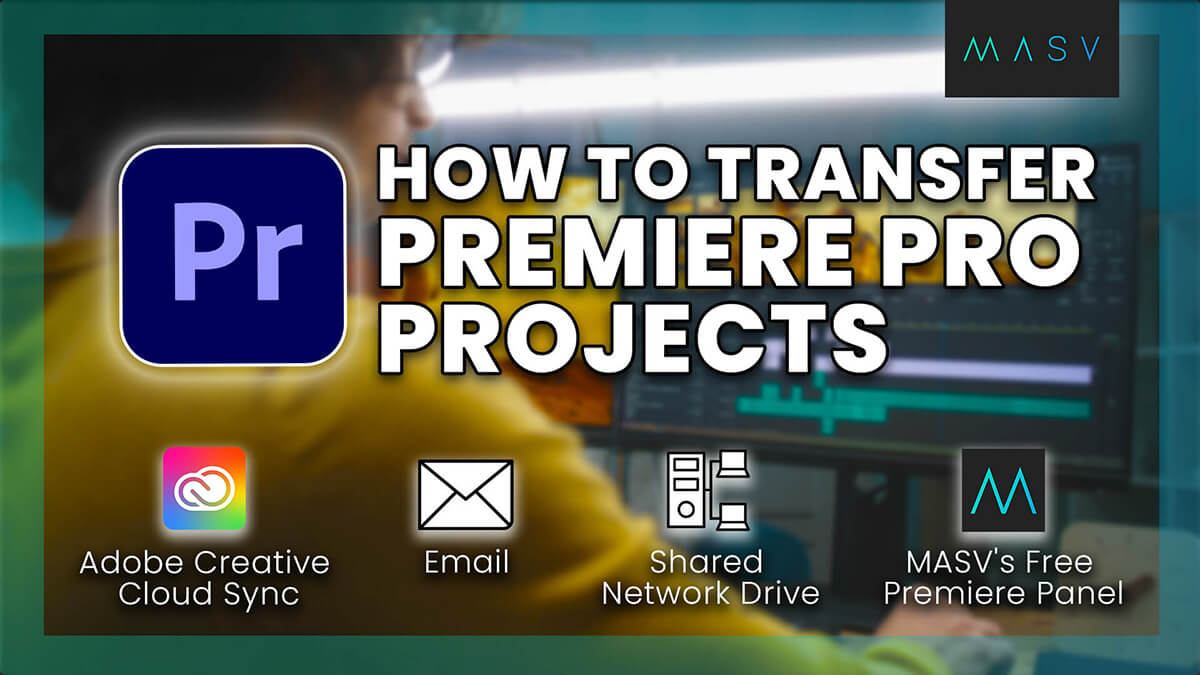
How to Share a Premiere Pro Project and Source Footage
Sharing a Premiere Pro project is essential for collaboration. Here’s how to do it.
The Challenge: Moving the Files
And now we come to the crux of the problem: Creating proxies is easy, but moving them efficiently is not – especially when you’re transferring file packages of hundreds of proxy files.
In today’s workflows, you’re not just managing local disks – you’re dealing with remote editors, shared storage, global review teams, and shared finishing facilities. The real challenge is keeping everyone synced without drowning in data transfer delays.
Why traditional methods fall short
- FTP: Outdated, insecure, and slow. Managing ports, firewalls, and restarts isn’t scalable for modern distributed teams.
- Consumer cloud storage: Tools like Dropbox or Google Drive weren’t designed for large packages or media workflows. File size limits, long sync times, and random throttling make them unreliable for high-res workflows.
- Legacy MFT tools: Powerful, but costly and complex. Their licensing models and setup requirements often exclude smaller teams or hybrid production environments.
- Shipping drives: Still common, but risky. Physical media can be lost, damaged, stolen or delayed. And with every shipment, you lose another day of production.
These methods often lead to fragmented workflows, delayed approvals, and stressed-out teams trying (often in vain) to hit deadlines while managing terabytes of data.
MASV: The Missing Link in Your Proxy Workflow
MASV eliminates the bottleneck of moving large proxy and original camera files. Whether you’re transferring 50GB of proxy media to an editor or 5TB of RAW footage to a color house, MASV’s accelerated network and unlimited file size capacity make large file transfer for video simple.
Here’s why MASV is tailor made for accelerating proxy workflows:
Unmatched speed: MASV’s global accelerated network moves terabytes in hours, not days, and can handle speeds of 10Gbps-plus. Remote video editing professionals can start cutting as soon as the proxies are uploaded, with no waiting for couriers or cloud syncs.
No file size limits: Send as much as you need, in one go. MASV handles multi-terabyte packages effortlessly, ensuring large shoots and VFX-heavy projects stay on schedule.
Flexible pricing: Choose from pay-as-you-go, pre-buys, subscriptions, or enterprise plans tailored to high-volume workflows. Enterprise users also gain access to MASV Express, API integrations, and direct-to-cloud routing.
Security and reliability: Every transfer is encrypted in transit and at rest. Password protection, single-use links, and checkpoint restart ensure your assets always arrive intact – even if the connection drops.
A real-world video proxies use case
Here’s a boots-on-the-ground use case for a proxy workflow. Imagine a commercial edit spanning three continents:
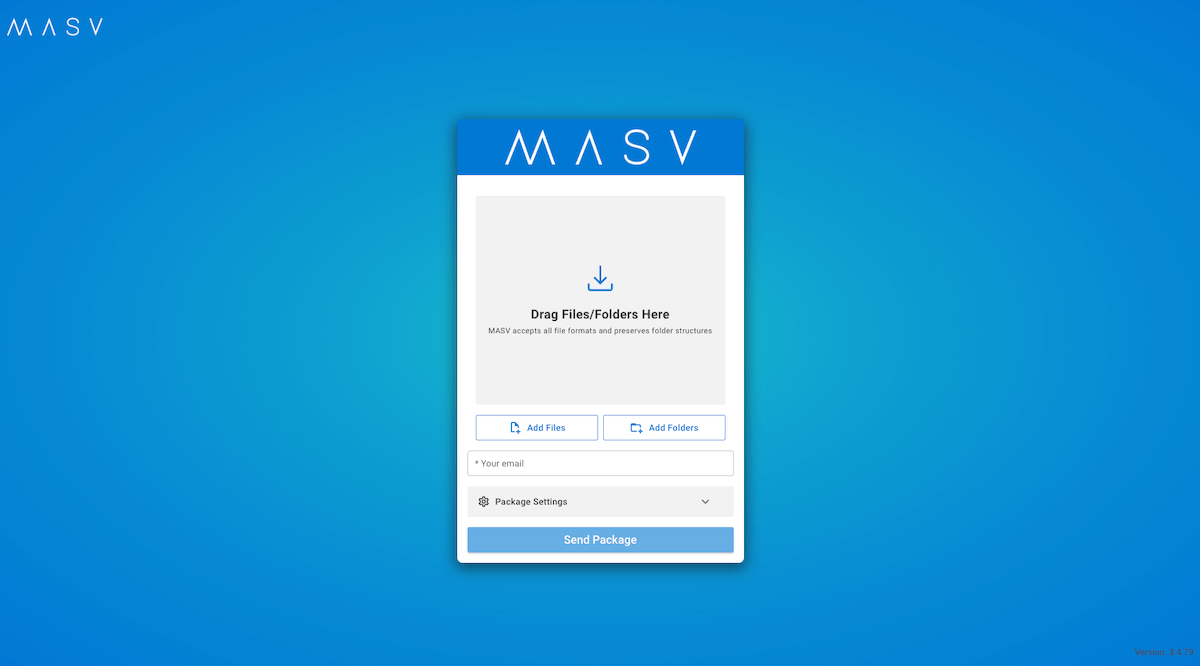
- The camera team in Los Angeles uploads the day’s OCF to a MASV Portal.
- MASV automatically routes lightweight proxies to editors in London via the Desktop App.
- The locked sequence is relinked and graded in Toronto using the original 8K files, and also delivered via MASV – no drives shipped, no wasted time.
Power Up Your Video Proxy Workflows With MASV
Proxy workflows are the backbone of modern video editing. They transform how teams collaborate, edit, and finish – but only when every step of the process is efficient.
A workflow is only as strong as its weakest link, and file transfer is often that link. MASV removes it entirely. With unlimited file sizes, relentless reliability, and effortless setup, MASV gives teams the confidence to focus on storytelling – not storage logistics.
Sign up for MASV for free and start accelerating your proxy workflow today.
Easily transfer proxy file packages
Transfer unlimited file sizes, and unlimited numbers of files, with MASV.