
Do your folders look like a bull ran through a china shop?
As a video editor, it’s imperative to keep your footage and assets organized both inside and outside your timeline to streamline your editing. To help optimize your video editing workflow, we’ve got some media organization tips to help you create the most efficient folder structure.
Table of Contents
Fast File Transfer for Video Pros
Stay organized and get things done quicker with MASV.
Why Video File Organization Matters (and Why You Could Be Doing It Wrong)
Ever spent 20 minutes hunting down “final_final_v2.mov” only to realize it wasn’t actually the final version at all? Poor video file organization wastes time, causes confusion, and turns projects into a frustrating cup game of “where the heck is it?” that you will never win.
Fast-moving media projects involving hundreds, if not thousands, of heavy video files from multiple collaborators are notoriously difficult to manage. A clean, consistent folder structure ensures that you and your team can find files fast, without guesswork. Strong video file organization and file structures saves your sanity and helps you meet your deadlines.

Hard Drive Folder Hierarchy
So where should you start? The foundation for proper media organization is a creating an easy-to-understand folder structure that includes every element of your video project, such as audio and graphics.
My best advice: Start small, and start simple. That said, you should always start your projects with two folders:
- Projects: A folder where active and completed projects live. Akin to a job site, where all the heavy lifting happens.
- Library: A collection of reusable assets you’ll likely need across multiple projects, a bit like a toolbox where all creative resources are neatly organized and ready to go.
This split achieves two things:
- Keeps things clean: Assets that don’t change (like stock music or templates) live separately from project-specific files.
- Scales effortlessly: As your number of projects grows, this structure won’t collapse into chaos.
- Together, these folders make an unbeatable team that streamlines your workflow, saves precious time, and future-proofs your file system from the creeping chaos that can crop up without proactive video file organization.
Congrats: You’re already halfway to an organized media workflow!
Inside the Library folder
Your Library folder is the Swiss Army knife of media files; ideally it contains tools and assets you can reuse across multiple projects. Here’s a break down of some subfolders to organize and get the most out of your Library folder:
- Branding: Logos, fonts, style guides, and overlays for consistency across projects.
- Stock footage: A collection of videos and images you frequently reuse.
- Music: Sound effects, licensed music, and audio tracks for various moods and genres.
- LUTs & presets: LUTs, templates, presets, and other plug-ins.
- Contracts/admin: Copies of agreements, release forms, and invoices you’ll need for clients.
Keeping these reusable assets separate ensures you don’t duplicate files across every project, saving both time and storage space.

Inside the Projects folder
The Projects folder is organized so anyone – collaborators, clients, or future-you – can quickly find what they need. Here’s a proven structure to use:
Let’s take a look inside this sample MASV folder. It’s organized by year and also includes a general Library folder for frequently-used branded assets.
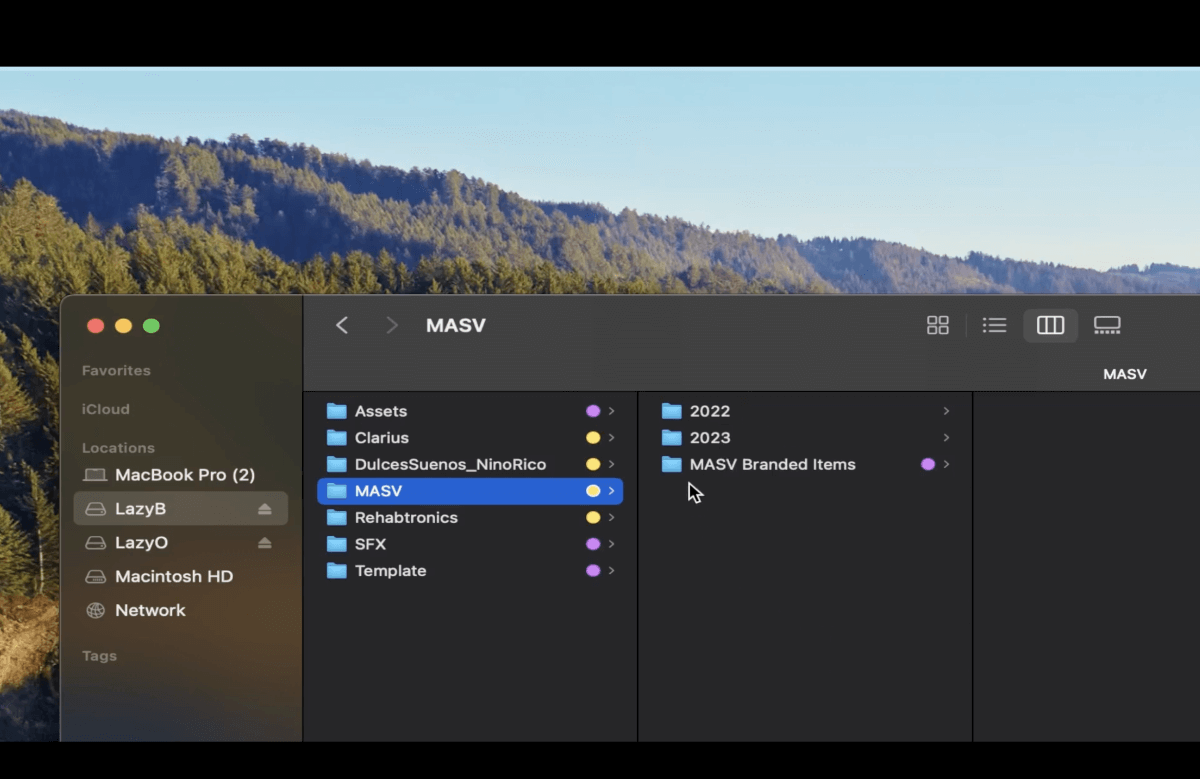
Within each yearly folder, there are subfolders for each month in that year.
Each monthly subfolder contains more subfolders for individual video projects completed within that month.
Each folder should adhere to consistent file naming conventions so you can easily identify the contents of each folder. If someone else has to work on your project, they should be able to understand where things are located and the purpose of each file and folder.
You ideally want the fewest number of folders possible. The structure should also intuitively make sense to you or anyone else.
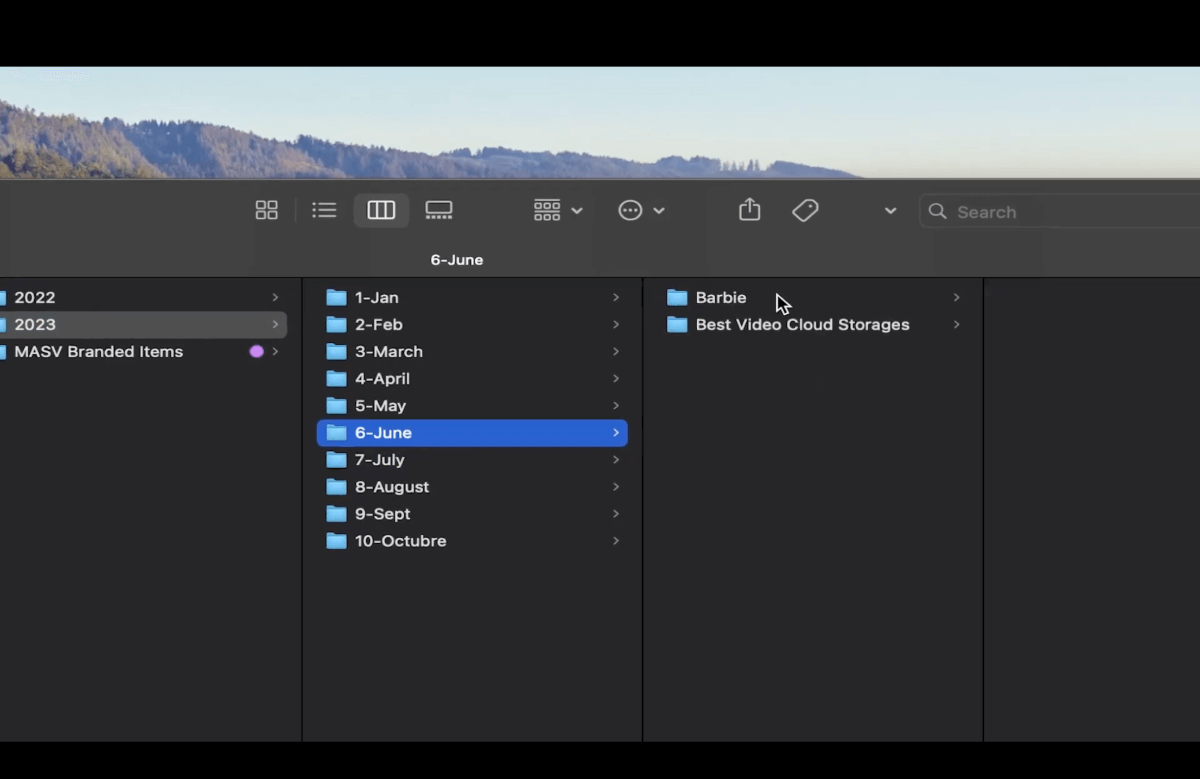
Now let’s click the 2023 folder. Go to the subfolder for June and click Barbie.
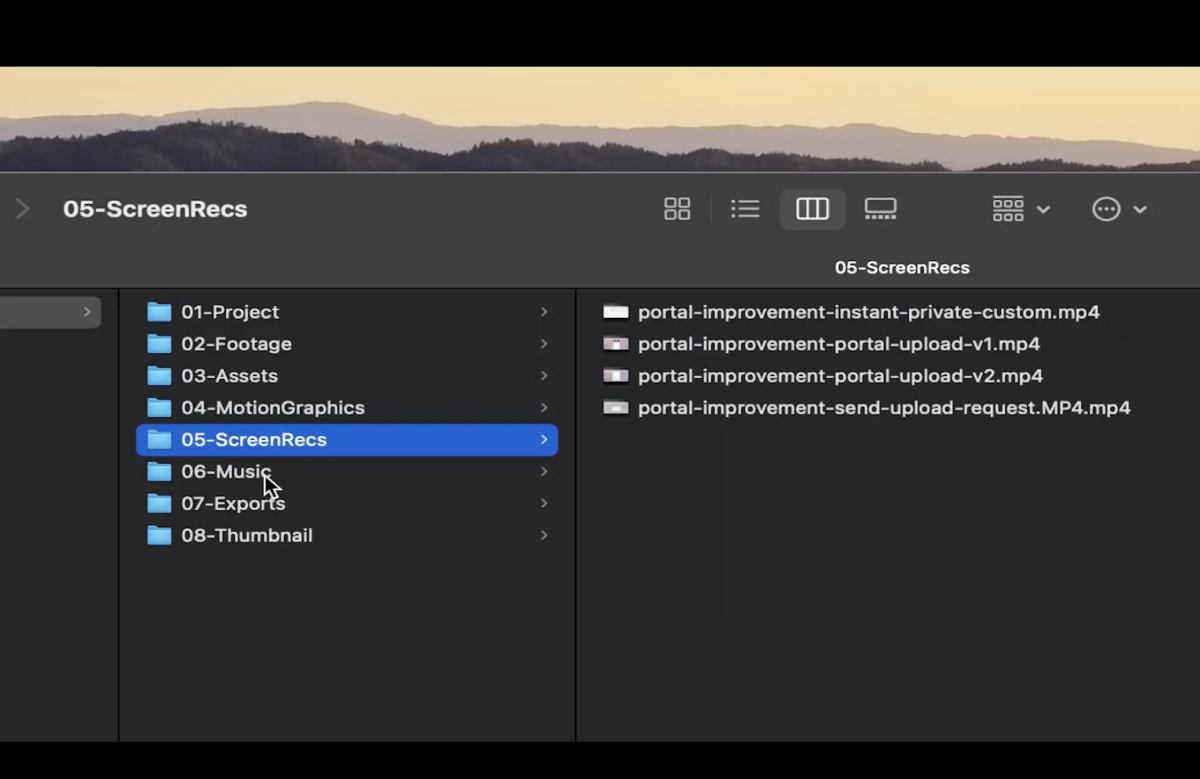
In it there are several other subfolders such as 01-Project, 02- Footage, and 03-Assets. Putting numbers at the beginning of the folder name helps maintain a folder hierarchy. This makes it easy to access the folders you use the most.
The folder Project is where you can find the main Premiere Pro project along with scratch disk folders such as Previews and Auto-Saves.
If you use other software such as Final Cut, DaVinci, or Avid, those files would also go here.
You can also include your After Effects project here if you’re creating any graphics or animations for the main video.
Next is the Footage folder. This is where I keep all footage from the recording, including the audio.
You can have subfolders to specify the footage type. For example, if you recorded with different cameras, you can create Acam and Bcam folders.
If you recorded in different locations you can create folder names to reflect that (such as the folders Home and Park in the image above). If you filmed on different dates you can organize the footage by date. You can also add a separate folder for stock footage.
Remember: The most important thing is that the organization is logical so it feels intuitive and allows for efficient video editing by either yourself or anyone else.
The Assets subfolder stores any stills, graphics, pictures, or video exports used as assets in After Effects.
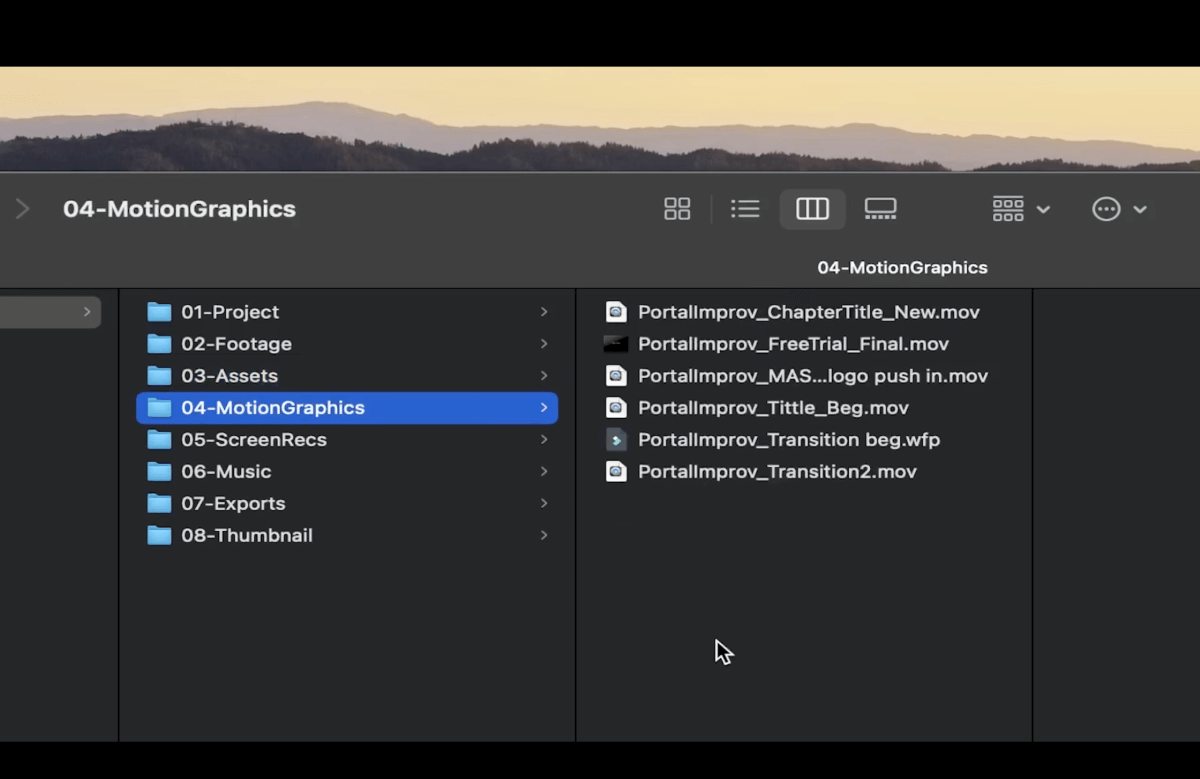
In the MotionGraphics folder, I store any exports from After Effects, such as animated titles, intros, or transitions.
Next, I have the folder ScreenRecs for screen recordings. This folder may or may not be necessary depending on the videos you produce.
The Music folder can also be named Audio. A typical Audio folder contains subfolders for music, raw audio, voiceovers, and sound effects.
You can also create an Exports folder to hold exported versions of your video edits for easy access. If you want to avoid spending hours manually transferring media to your folders, check out MASV’s automated file transfer feature.
For many projects, Exports would be the last folder, but if you make YouTube videos, you might also have a Thumbnail folder containing the Photoshop file with all the assets and exports for the thumbnail image.
Once you land on a folder structure that makes sense, create an empty template you can copy and paste every time you start a new project. That way, you’ll have a consistent folder structure for all your projects, saving you a lot of time with your media management.
Best-in-Class Large File Transfer
Streamline your workflow with MASV’s secure and fast large file transfer.
Folder Organization in Your Timeline
Go to your Premiere project and import the footage, assets, graphics, and all the folders you’re going to use.
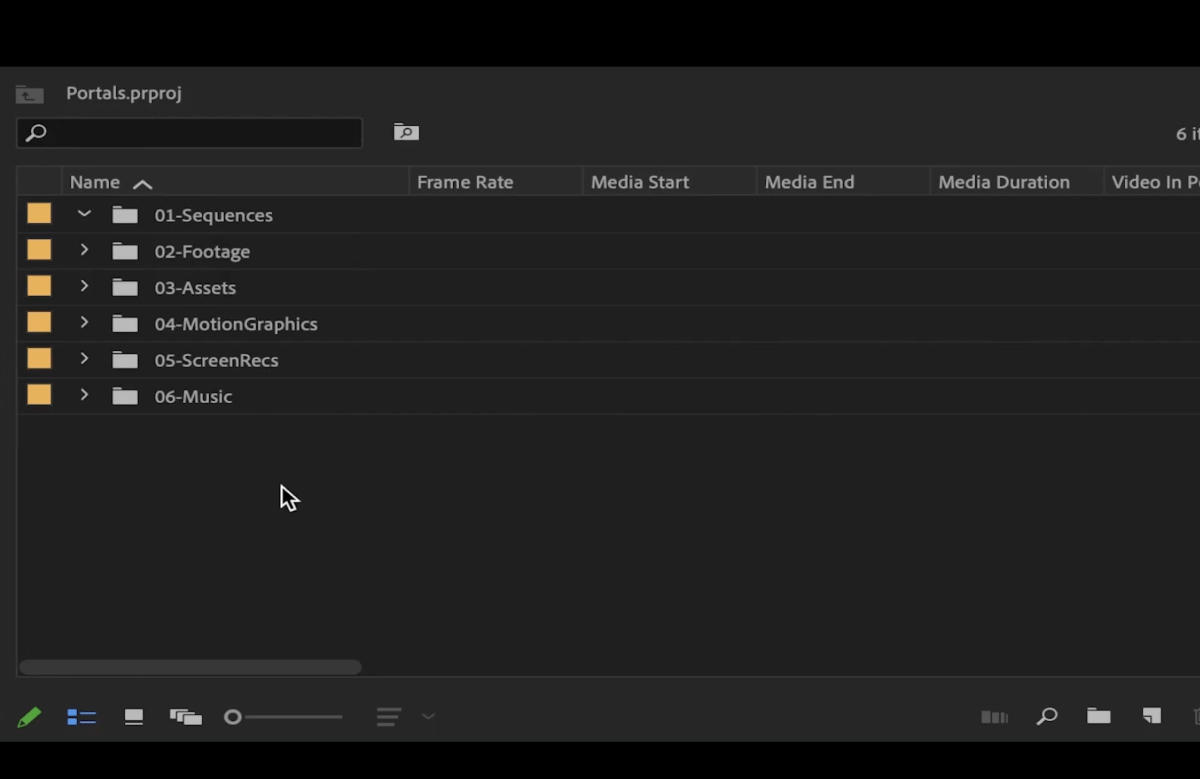
At this point, we’re just missing a Sequences folder. Click on the small folder in the bottom right corner of the project window (New Bin), and name it Sequences.
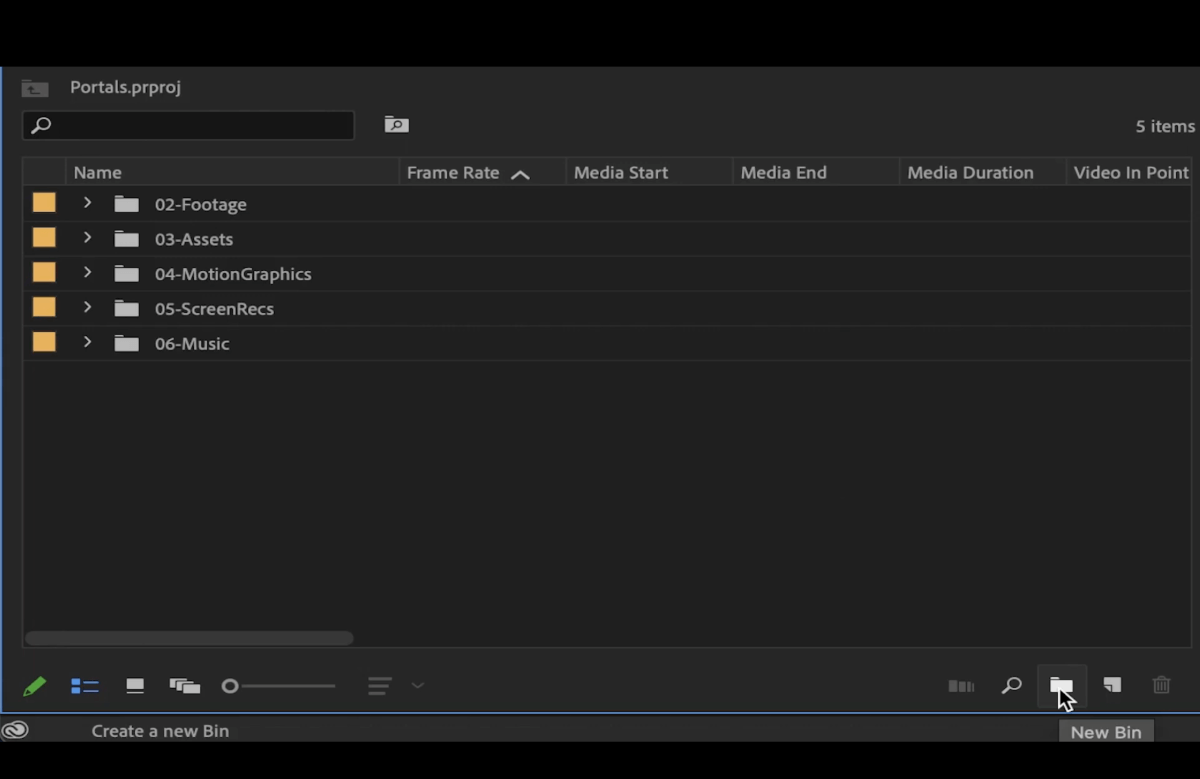
You can add 01 to the beginning of the folder name to make sure it appears first. You can add all the sequences of your project to this folder.
Media File Labeling and Metadata
But wait, that’s not quite everything! Some video editing best practices also include media file labeling inside the project window.
Go to a folder, select the files, right click on them, and change the label color.
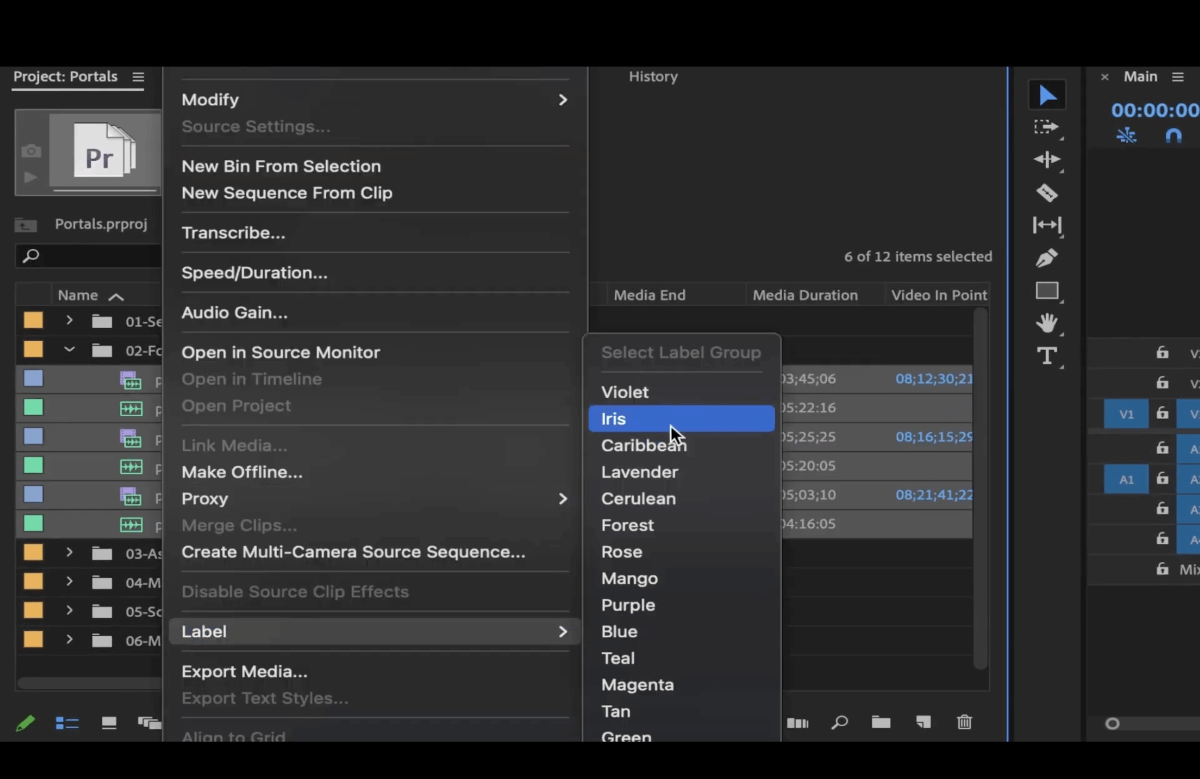
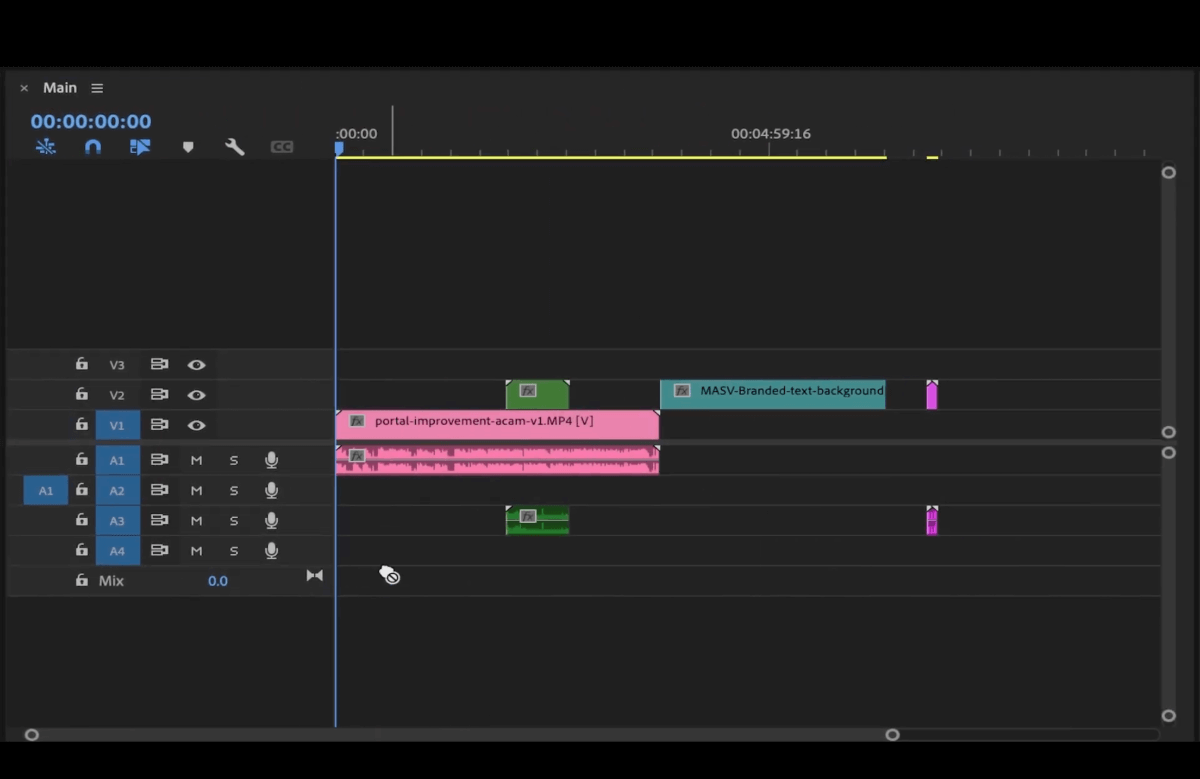
Do this with each folder so you can easily differentiate them on the timeline while editing.
If you want to go even further, fill in the metadata info next to each file in the project window.
Scroll to the right and you’ll find the sections Tape Name, Description, Log Note, Scene, and Shot, among others.
You can fill these in and drag each section to the left so that information appears first.
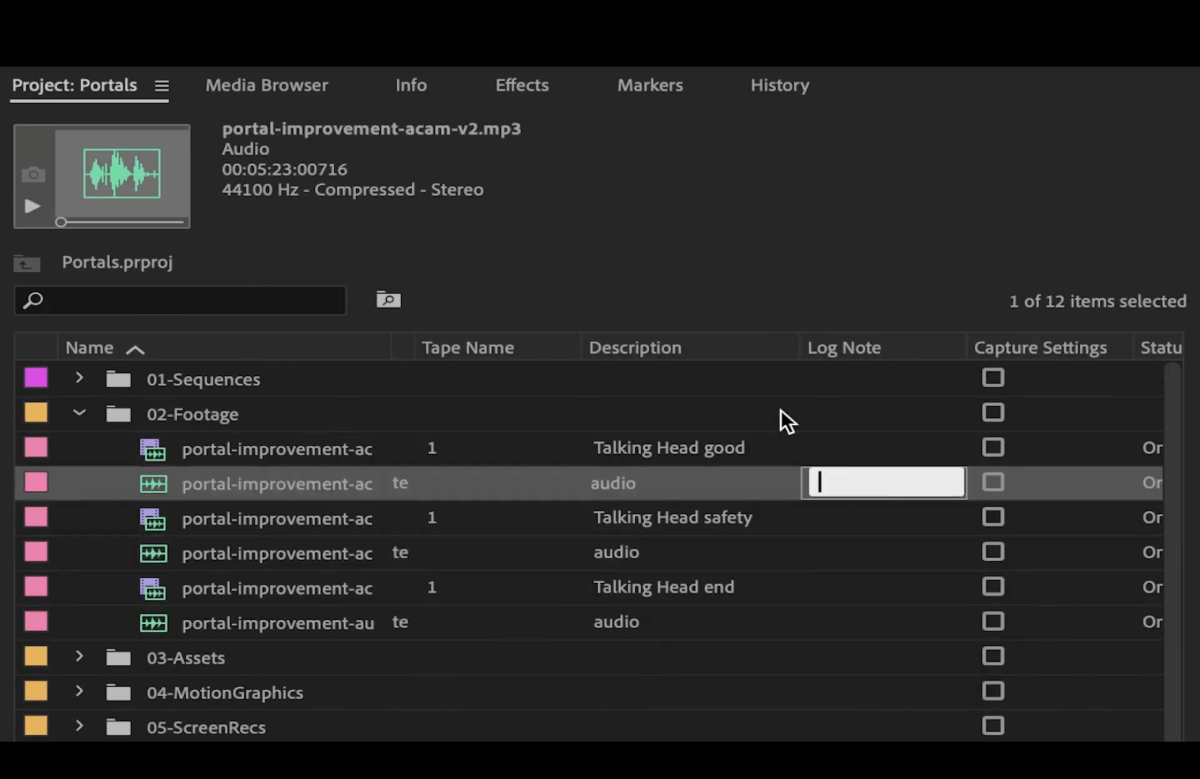
Click on any of the sections to organize files by those categories. The up or down arrows that appear will tell you in what order the files are displayed.
Lastly, remember to regularly back up your folders to ensure data safety. Always archive completed projects to free up space on your computer while keeping all project assets intact.
Workflow Tips to Stay Organized (And Sane)
We’re making some solid progress here, but great structure is only half the battle. You also need a system to maintain it. Here’s how:
- Use templates: Set up a master folder structure template and duplicate it for every project.
- Schedule cleanup time: Take a few minutes at the end of each workday to organize files. Your future you will thank you.
- Take advantage of cloud storage and backups: Use cloud tools or NAS drives for storage redundancy. Keep active projects local for speed and backups or archive footage in the cloud.
Organize Your Media Workflow with Trusted File Transfer Tools
A clean video file organization structure and system isn’t just a nice to have—it’s an absolute necessity. By splitting your workspace into Projects and Library, and following a clear folder structure, you can eliminate chaos and keep your media workflows running smoothly.
A solid video file organization system becomes even more powerful when used with a reliable file transfer tool like MASV. If you’re sending massive project files to editors, sharing assets with clients, or backing up footage to the cloud and on-prem storage, MASV keeps all your carefully structured folder structures and trees intact.
MASV is a large file transfer tool that ensures that your media files get where they need to go, and fast. Here are a few ways MASV helps you be more organized:
- It preserves your folder structure, which makes project handoffs a breeze.
- You can create free MASV upload Portals to request, collect, and organize files from clients and contractors.
- MASV allows you to create project Teams and invite as many people to be a part of that team.
Get started with MASV for free today with 15 GB free to use every month. After that, it’s Pay As You Go per transfer for flexibility, or opt for low-cost subscriptions for significant savings.
This post was originally published Nov. 28, 2023 and updated March 30, 2026.
Share Large Media Files Without Limits
Heavy files? No stress. MASV can handle file packages of unlimited size.