
Whether for work or pleasure, we all want faster internet speeds. Sometimes, however, internet speeds aren’t fast. Sometimes they’re frustratingly slow.
When the latter is the case, you can grit your teeth and curse your internet service provider (ISP)’s existence – or you can do something about it.
But the best way to improve internet speed at home depends on your issue. That’s because slow internet speeds happen for a variety of reasons. Sometimes it’s the ISP’s fault, but network congestion plays a significant role. Perhaps you need to upgrade a certain piece of equipment or shift the layout of your network.
Table of Contents
- Adjust the location of your wireless router or antennas
- Adjust your frequency band or channel
- Upgrade your wireless router and modem
- Extend your wireless network
- Replace Wi-Fi with an Ethernet cable to improve home internet speed
- Eliminate unnecessary network connections
- Restart your modem and router
- Upgrade to faster internet
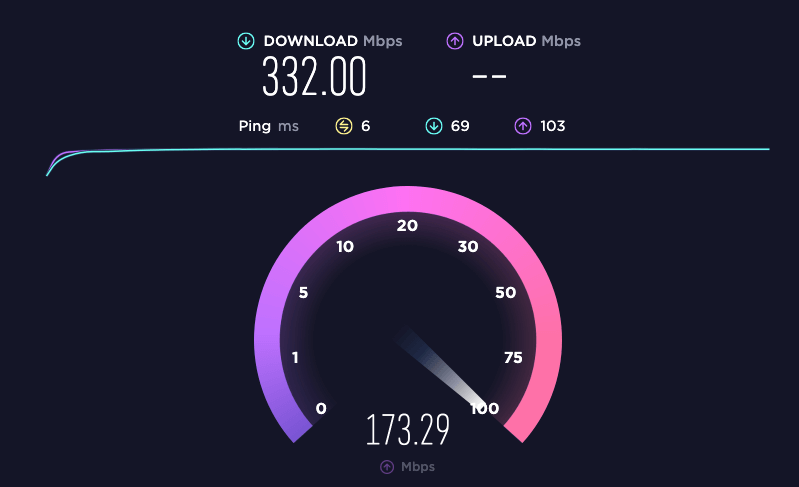
First, test your home internet speed
We strongly recommend testing your internet speed before doing anything else (plenty of free resources exist to help you in this endeavor). There are a couple of reasons for this:
- You can compare your results to the maximum advertised speed of your internet plan. While networks rarely (if ever) achieve the maximum advertised speed, significantly slower speeds likely indicate there’s a problem.
- You can use your results as a baseline to see which mitigation steps have had an effect.
Once you’ve got a handle on your internet speed – assuming it is indeed unreasonably slow – it’s time to start tweaking your network to get maximum speed. Let’s roll up our sleeves and get started.
1. Adjust the location of your wireless router or antennas
Ever wonder why you get excellent connectivity in your living room but not just a few feet away on your outside deck? That’s because your wi-fi signal can be interrupted or blocked by solid objects such as walls and floors.
Some best practices from the experts include keeping your router in a location central to wherever high-priority internet use takes place, preferably in an elevated position. That means avoiding the urge to place your router in a closet or under a cupboard. If your current ethernet cabling provides few placement options, consider some quick rewiring to place the router in the perfect spot more easily.
You’ll also want to ensure your router and modem aren’t in the same area as your microwave oven. Because these handy kitchen appliances use the same frequency as most Wi-Fi signals – 2.4 GHz – microwaves tend to cause Wi-Fi interference. Wireless devices like cordless phones, baby monitors, and Bluetooth speakers can all do the same, so plan accordingly.
Additionally, if your device has an external antenna, adjusting it may improve performance.
Send Files Faster than Ever
Get MASV for fast, reliable, and secure cloud transfers of large, sensitive files.
2. Adjust your frequency band or channel
Most routers now use dual-band technology, meaning they can emit wireless signals at either 2.4 GHz or 5 GHz (the latter typically provides better performance but at a lesser range).
Because the band you’re on could be having interference – and because most internet of things (IoT) devices use 2.4 GHz, making that frequency rather crowded at times – it might be worth trying the other band if you’re having issues. Here are instructions on how Windows 10 users can change their Wi-Fi frequency band.
Just like any other channel of communication, sometimes your Wi-Fi channel can also get congested. If that’s the case, you can also change your Wi-Fi channel (the 2.4 GHz band features 11 channels, and the 5 GHz band carries 45). Those on the 2.4 GHz frequency should lean toward channels 1, 6, or 11 because these channels don’t overlap, giving the least chance of interference from other devices. The 5GHz band features 24 non-overlapping channels.
Mac users can use Wireless Diagnostics (hold down Option and click the Wi-Fi icon at the top right) to find their ideal channels on either band. Windows users can see their options by using an app, such as NetSpot, or running a command in Windows PowerShell. You’ll then need to log in to your router’s online interface to make the change.
3. Upgrade your wireless router and modem
A single bottleneck can cause widespread network slowdowns, and sometimes that bottleneck resides squarely in your modem or router. Older, out-of-date equipment can give you weaker signal strength and will slow you down (and could also be a security risk).
While most home internet users rent equipment from their ISP, you can sometimes get better performance if you shop around and buy your own modem and router. You’ll almost certainly have better control over various features. Additionally, buying a modem and router capable of handling genuinely high speeds sets you up nicely for when you want to upgrade to a 10Gbps connection.
Share Files with Anyone
All you need is an internet connection.
4. Extend your wireless network
Even the most powerful modem and router, placed in the best position, can still have issues if your space is large enough. You’ve got a few options to fix this:
- Wi-Fi extenders or boosters do exactly what they sound like: They extend the range of your Wi-Fi network simply by being plugged in and connected. Keep in mind the WiFi signal from these extenders will be weaker than the original.
- Wi-Fi mesh network systems replace a single router with multiple devices that work in tandem to increase WiFi coverage in your allotted area.
- Powerline adapters come with two devices: One that’s plugged into your router and another that goes into the wall socket of the room where you want better connectivity. The devices use the electrical wiring inside your walls to provide an enhanced signal in that room.

5. Replace Wi-Fi with an Ethernet cable to improve internet speed at home
At MASV, we always recommend switching to a hard-wired internet connection anytime you experience large file transfer issues. The same principle applies to overall network performance.
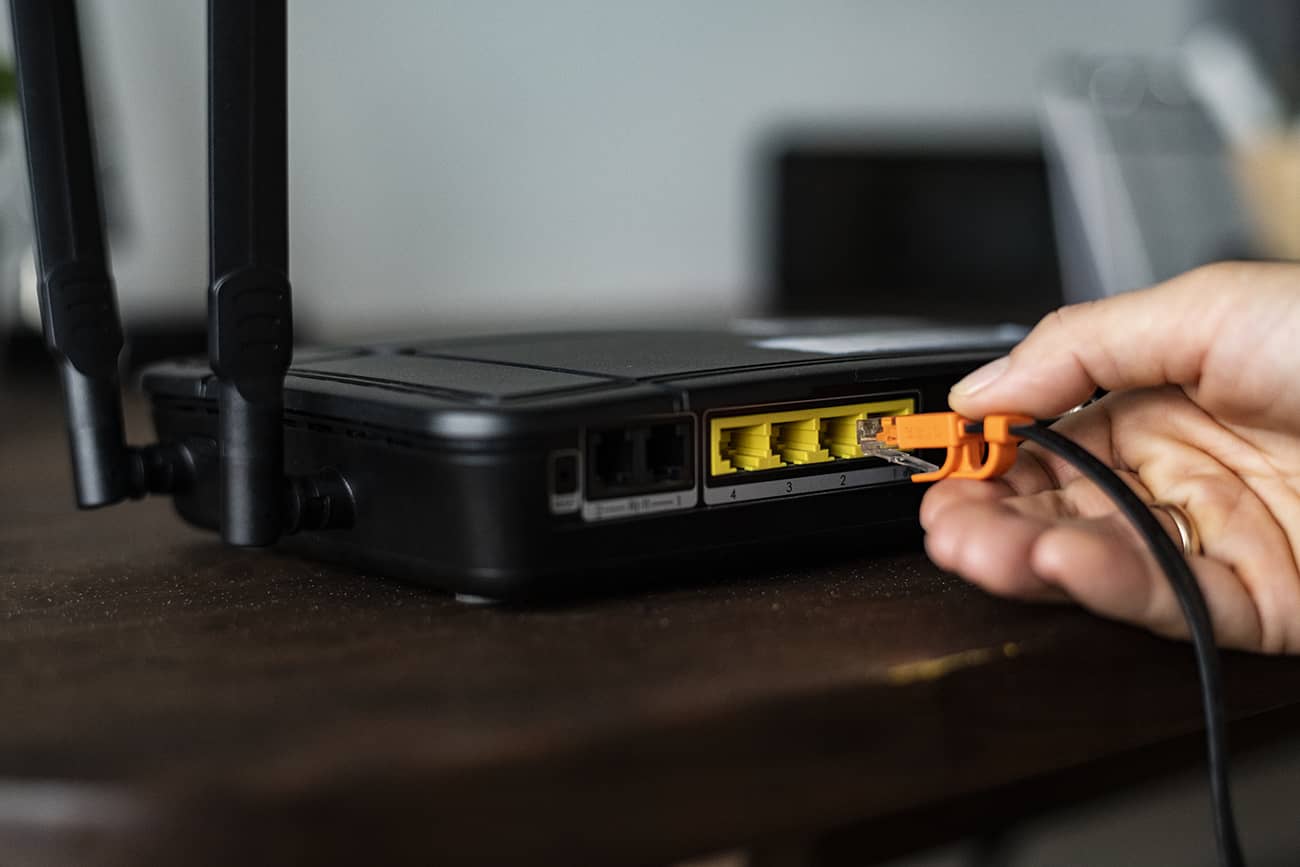
After all, you don’t need to use Wi-Fi if you don’t have to. A wired connection using an ethernet cable almost always provides better performance because you get your own connection (not shared with other connected devices like your washing machine) and the signal doesn’t have to pass through walls or other solid objects.
Most routers have multiple Ethernet ports, so all you need to do is get a cable of the right length, and you’re good to go. Due to potential latency issues, most experts recommend keeping cables below 328 feet if you can.
6. Eliminate unnecessary network connections
We’ve all experienced the frustration of computer slowdowns caused by unnecessary applications running in the background, and the same thing can happen if your home network has dozens of items running on the same channel (for example, your smart tv, gaming consoles, and other smart home devices).
If you’re experiencing network slowdowns, you should consider removing any devices from your network that aren’t crucial. While this sounds time-consuming, Wired suggests changing your Wi-Fi password and rebooting your router – that should do the trick rather quickly, although you’ll have to re-connect them all by manually changing their passwords.
Another advantage of buying your own router is that more advanced gear typically allows the prioritization of specific devices or services, so critical activities don’t get squeezed out by someone watching cat videos.
7. Restart your modem and router
There is something of a debate about whether unplugging your router and modem for 30 seconds or more really encourages better performance.
While HighSpeedInternet.com strongly recommends the practice, other sources say that while it can restore dead internet, restarting your equipment doesn’t make much difference in performance. Even these sources concede that the re-start process could spur your router to select a better channel, which may result in better performance.
Either way, because dead internet correlates pretty strongly with terrible performance, we’re going to go ahead and recommend this step. It likely can’t hurt, and it certainly could help an awful lot.
Send Files Faster than Ever
Get MASV for fast, reliable, and secure cloud transfers of large, sensitive files.
8. Upgrade to faster internet
If you’ve tried all these fixes and are still not happy with the number in your speed test, it’s probably time to either call your internet provider and ask for technical help on their end, or, barring that, upgrade to faster internet.
As previously mentioned, some internet plans now offer maximum speeds of up to 10Gbps – provided you have the network components to pull it off. Similar plans come online all the time.
Indeed, as 1Gbps internet was once an outlier and is now pretty much standard, it’s a good bet that 10Gbps connectivity will be quote-unquote normal one day.
Read More: Why Are Most Cloud File Transfer Services So Slow?
How to upload files faster from a browser?
Just like internet speeds, browsers have inherent limitations. But they are capable of sending large files over the internet: The MASV Web App can quickly and reliably send large files around the world using only a browser window.
However, browsers tend to max out at 2-4 Mbps of speed because they are optimized for mass use rather than performance.
But how can we improve browser performance to make a popular, easy-to-use option even more valuable?
- Use a wired connection: Connecting your device to your network source via an ethernet cable will instantly improve transfer speeds. This is good practice for any task that requires serious processing power.
- Reduce the number of connected devices: The more devices on a single network, the slower the bandwidth. By reducing the number of devices connected to one network, you will have a stronger connection.
- Do not switch tabs: When sharing a file, do not navigate away from the main transmission tab. Your machine balances CPU usage by the number of tabs you have open and which one is in use. Sending a file and switching over to another tab tells your machine the new tab is now the primary focus. This takes power away from your transfer tab, which can increase latency.
- Send from a local disk: Sharing files from a local disk—a machine’s hard drive—is faster than using a folder synced to a cloud storage. For a browser to access a file from the cloud, it has to ping the right server, retrieve the package, and then queue it for transfer. Local disk uploads are exclusive to the machine. They don’t require additional requests.
- Send smaller files: Splitting a 2 TB file into smaller chunks reduces the strain on your network.
The MASV Approach
When we set out to create a fast, easy, and reliable file sharing service, we knew the browser would be essential.
Browsers are accessible and understood by all levels of competency. In order to make browsers reliable, we applied our understanding of latency to improve the transfer experience:
MASV automatically splits files down to smaller pieces using logic. It then sends multiple small requests rather than one large single request—an action known as multi-threaded file transfer.
To use a highway analogy, MASV is a dispatch that offloads 10 GB from one truck to smaller vehicles. This reduces latency and helps in the event of a network interruption. If three out of the five vehicles make it to the destination before the interruption, MASV only has to resume travel for the remaining two cars. Not an entire truck.
Furthermore, MASV:
- Locates the closest server between you and your destination so bytes have a shorter distance to travel.
- Optimizes for max transfer speeds. No throttling.
- Maintains file structures to avoid zipping files prior to sharing.
BONUS: Deploy MASV Multiconnect for even faster speeds
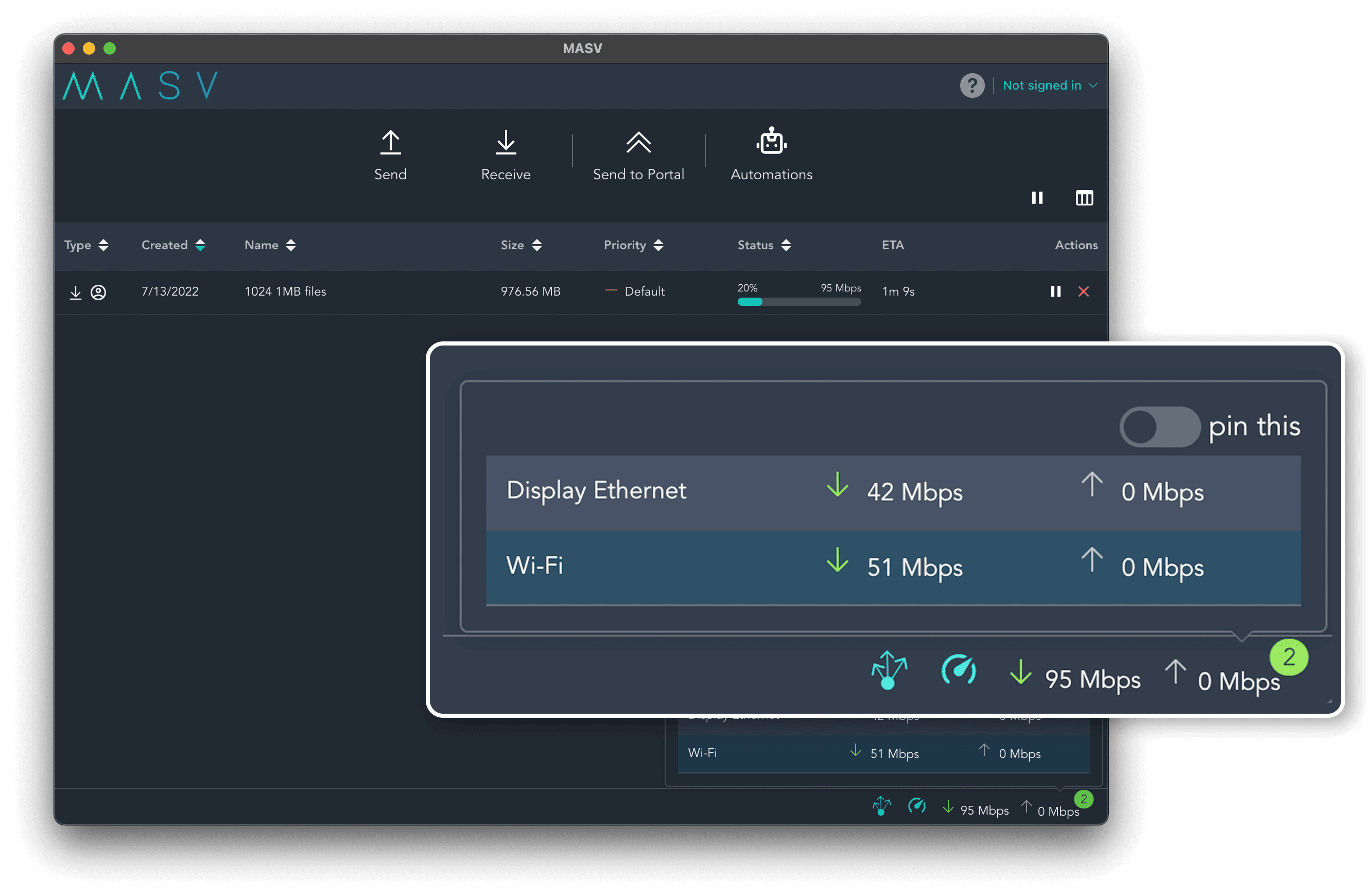
No matter your internet speed, MASV’s Multiconnect feature boosts file transfer speeds by bonding multiple internet connections (e.g. 5G and Wi-Fi, or Ethernet and LTE) through the MASV Desktop App. For those of you with ultra-fast connections, the app is optimized to handle 10Gbps connectivity.
And that’s on top of our global accelerated network of 300-plus servers that ensure the fastest speeds and smallest possible gap between sender and receiver.
Multiconnect can mean the difference between file transfer success and failure for those on location or with otherwise weak connections. And it means significantly faster transfer speeds for users with fast 5Gbps or even 10Gbps connections.
ANOTHER BONUS: MASV Speed Limits to Limit Bandwidth Usage
If you have multiple residents in your household who engage in bandwidth-heavy activities like streaming high-res videos, downloading movies, conducting video calls, or transferring heavy files, your internet likely suffers from occasional network congestion.
MASV helps alleviate this issue with its Speed Limits tool. It allows you to control the upload and download speeds of file transfers, along with what days of the week and times of day these limits are applied. If MASV Multiconnect is enabled, MASV users can use Speed Limits to set separate speeds for each interface.
Limiting MASV’s high file transfer speeds during other bandwidth-heavy activities helps maximize internet performance for everyone in your household. You can then remove your upload and download limits during periods when bandwidth is freer, like overnight or when the house is empty.
Scheduling large file transfers at more opportune times ensures they don’t interfere with people’s activities at home. And because home internet services can be pricey depending on your plan and network provider, limiting speeds can also help reduce costs.
Sign up for MASV today and start testing those speeds right now for free.
Try MASV for Free
Get started for free today.
MASV now works with your favourite apps
Integrations To Help You Streamline Your File Transfer Workflow.

Fast, Easy, and Secure Transfer of Large Files
Create a free MASV account to get started.